Managing SSH and GPG Public Keys
On GitCode, you can use SSH (Secure Shell Protocol) and GPG (GNU Privacy Guard) public keys to ensure the security and convenience of code hosting and commits. This article will guide you through understanding and setting up these two types of public keys.
- SSH: SSH is a secure remote login protocol. By adding an SSH public key, you can push and pull code without entering your username and password each time.
- GPG: GPG is an encryption tool that can be used to verify the authenticity of commits. After adding a GPG public key, you can sign your commits to ensure they are from you.
- Public and private keys are used in pairs; please keep your private key safe and avoid leaking it.
- The GPG public key must be associated with the email address verified on GitCode.
Generating and Adding SSH Keys
Generating SSH Keys
-
Open the terminal (Windows users can use Git Bash).
-
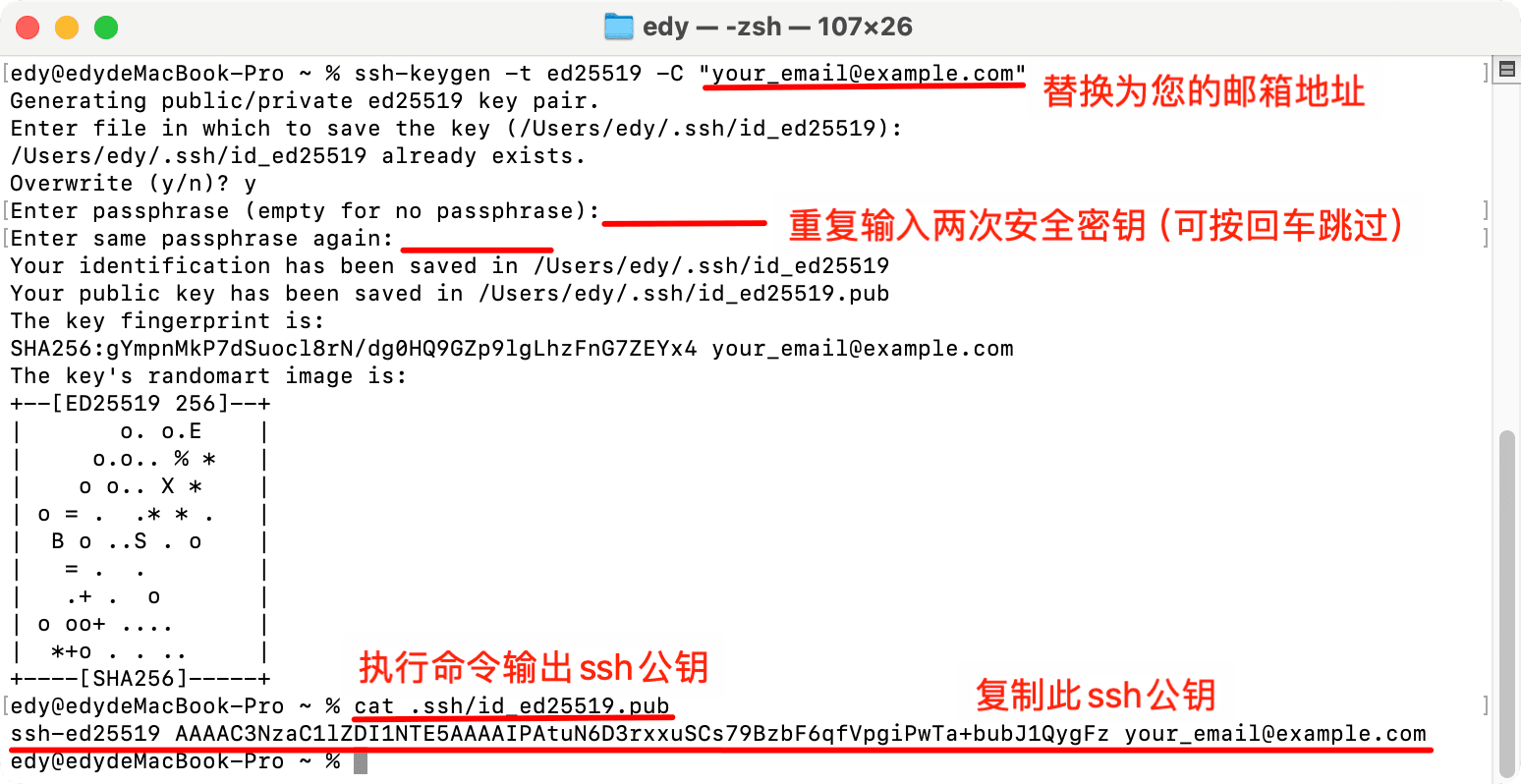
Enter the following command, replacing
[your_email@example.com](mailto:your_email@example.com)with your email:ssh-keygen -t ed25519 -C "your_email@example.com" -
When prompted, press Enter to accept the default file location.
-
Enter a secure passphrase (optional but recommended).
-
The key pair will be generated at the following locations:
- Private key:
~/.ssh/id_ed25519. - Public key:
~/.ssh/id_ed25519.pub.
- Private key:
Adding SSH Public Key to GitCode
-
Copy the content of the SSH public key:
cat ~/.ssh/id_ed25519.pub -
Log in to GitCode, go to "Personal Settings" -> "Security Settings" -> "SSH Public Key".
-
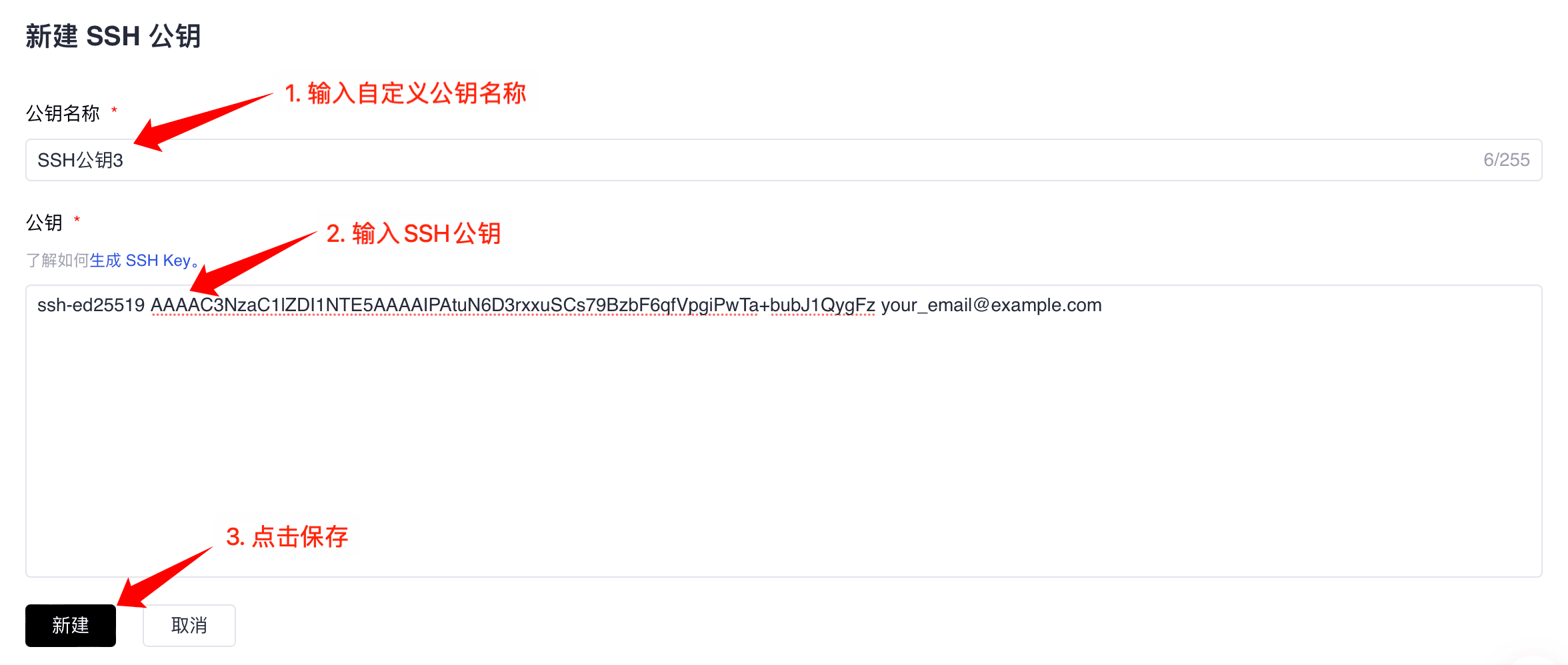
Click “+ SSH Public Key”.
-
In the “Key Name” field, provide a descriptive name for the public key.
-
Paste the copied public key content into the “Key” text box.
-
Click “Create” to complete the operation.
Testing SSH Connection
ssh -T git@gitcode.com
Generating and Adding GPG Keys
Generating GPG Keys
-
Install the GPG tool if it is not already installed.
-
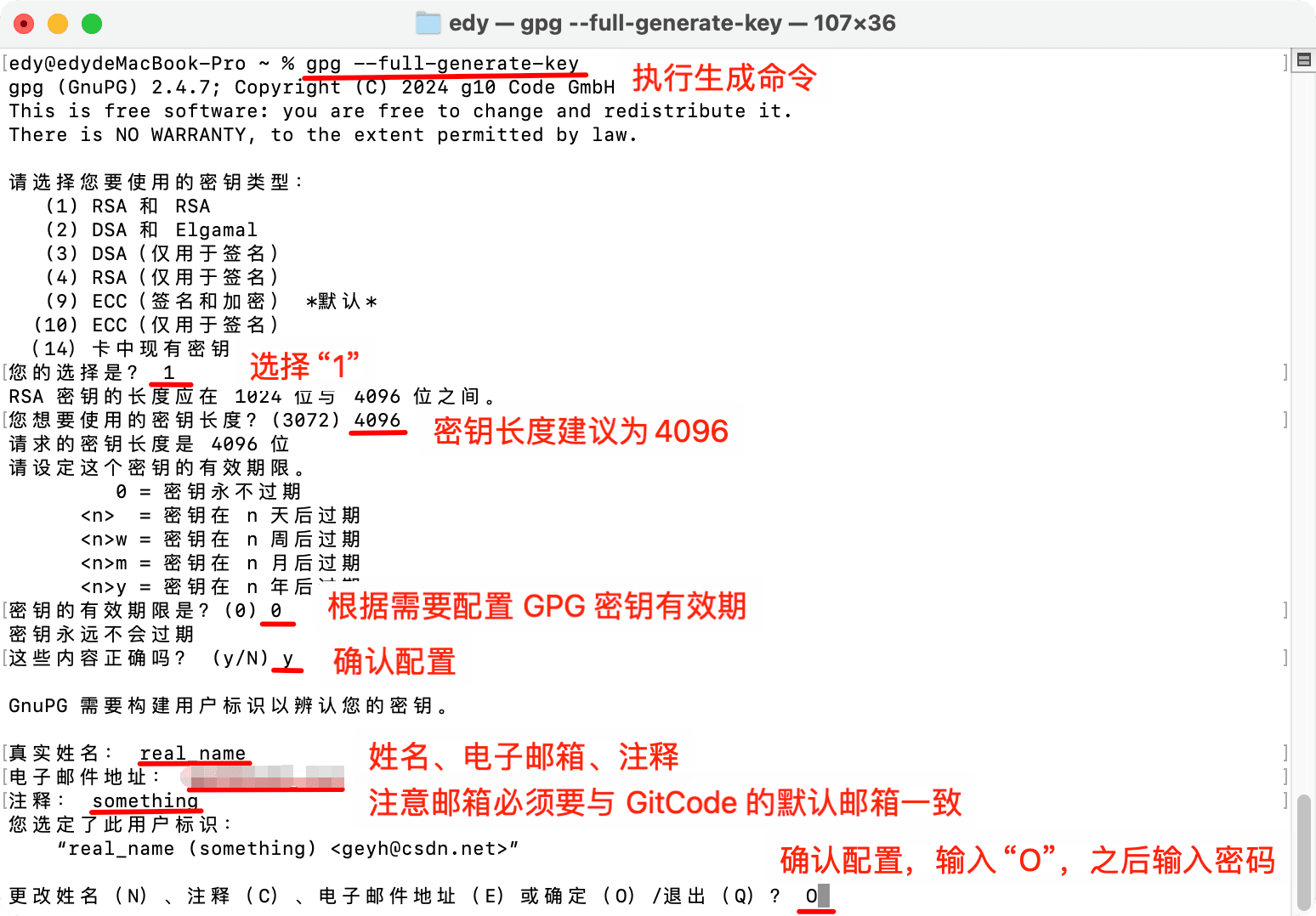
Generate a GPG key pair:
gpg --full-generate-key -
Choose the key type (recommended: RSA and RSA).
-
Set the key length to 4096 bits.
-
Set the key expiration date.
-
Enter your personal information:
- Real name.
- Email address (must be the one verified on GitCode).
- Comment (optional).
-
Set a passphrase.
Exporting GPG Public Key
-
View the list of keys. If there are multiple keys, find the one you need based on the
uid(user information).gpg --armor --export YOUR_KEY_ID -
Export the GPG public key. Copy the entire output, including “-----BEGIN PGP PUBLIC KEY BLOCK-----” and “-----END PGP PUBLIC KEY BLOCK-----”.
gpg --armor --export YOUR_KEY_ID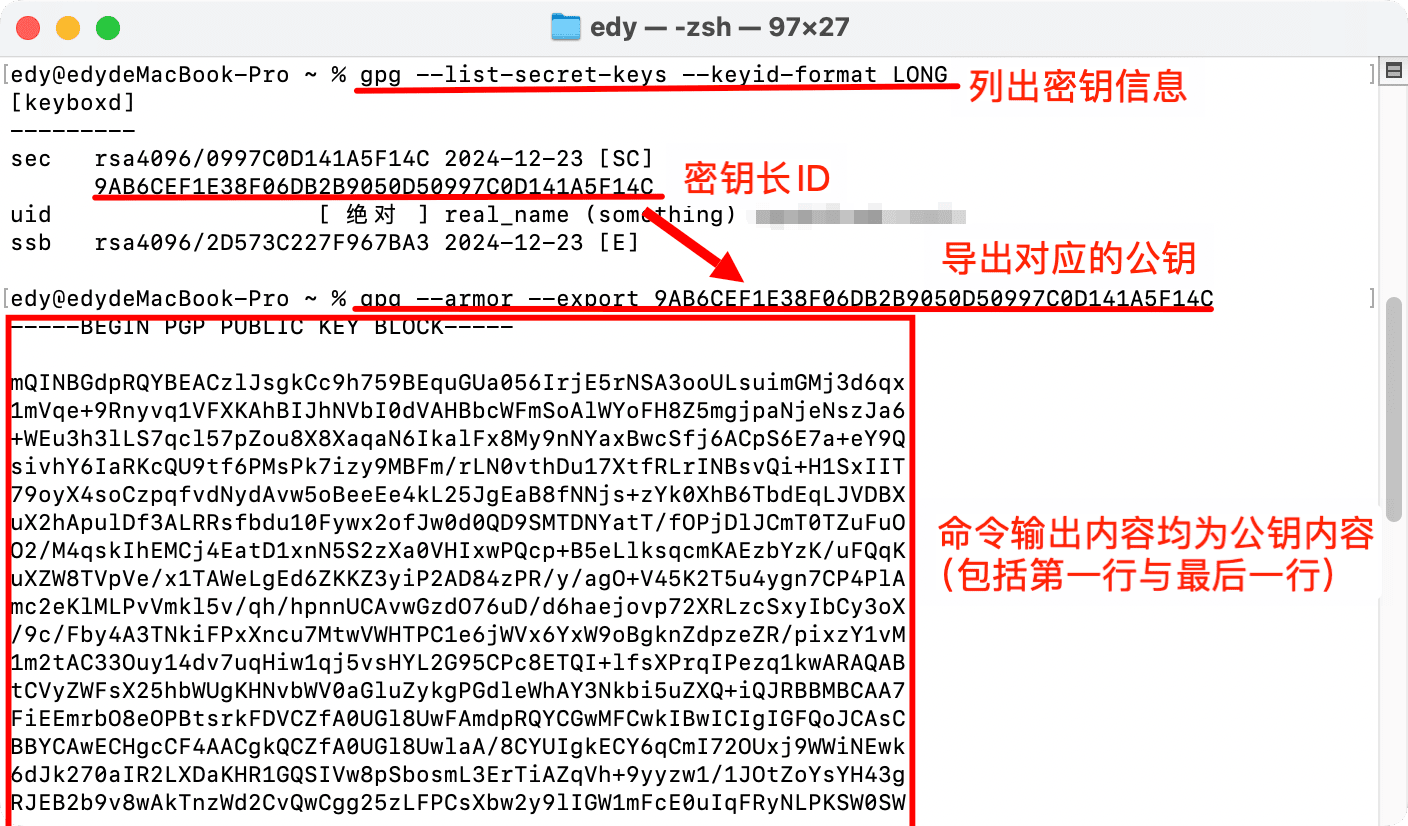
Adding GPG Public Key to GitCode
-
Log in to GitCode, go to "Personal Settings" -> "Security Settings" -> "GPG Public Key".
-
Click “+ GPG Public Key”.
-
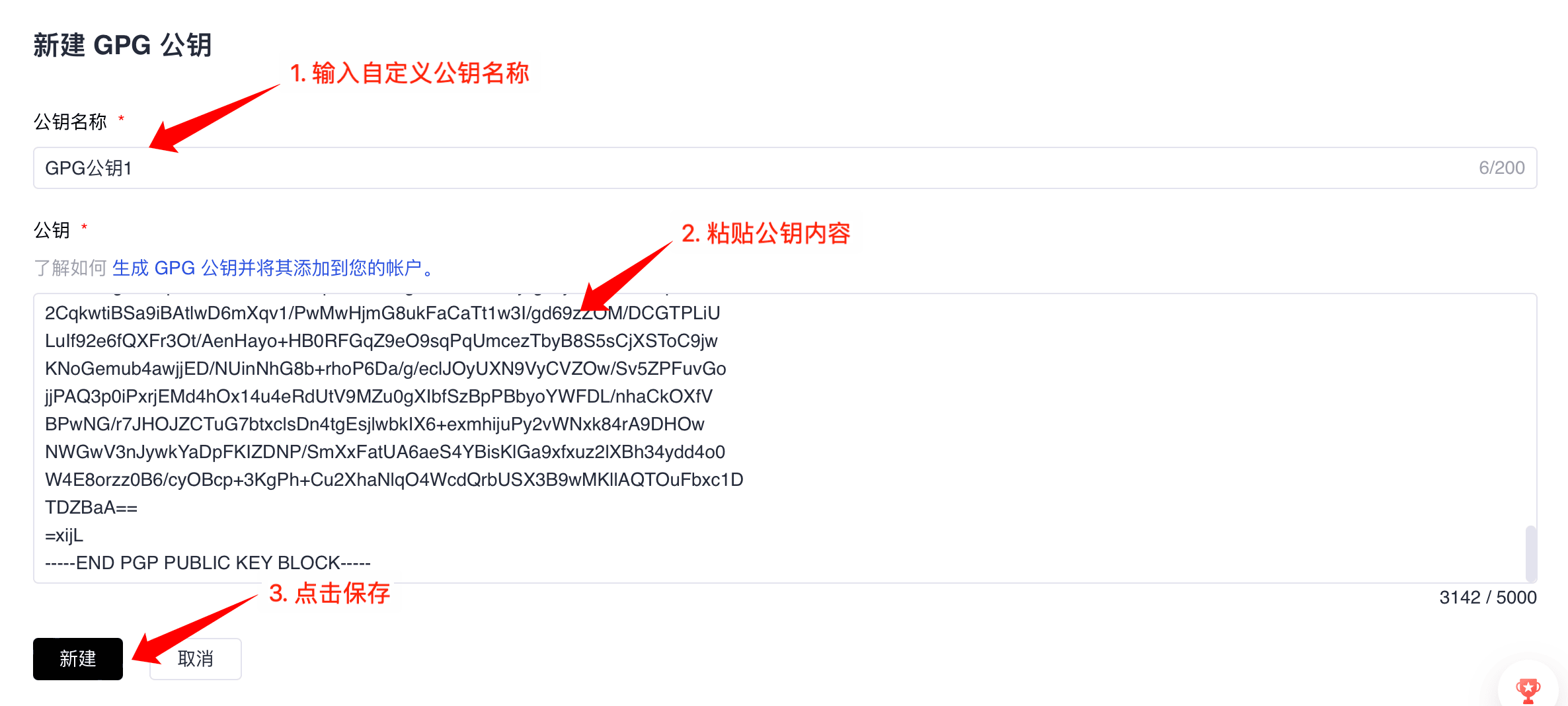
In the “Key Name” field, provide a descriptive name for the public key.
-
Paste the exported GPG public key into the “Key” text box.
-
Click “Create” to complete the operation.
-
A confirmation message saying “Verified” indicates successful creation.
Configuring Git to Use GPG Signing
-
Set the GPG key in Git:
git config --global user.signingkey YOUR_KEY_ID -
Enable automatic GPG signing of commits:
git config --global commit.gpgsign true
By configuring SSH and GPG public keys, you can more securely and efficiently host and collaborate on code on the GitCode platform. Reasonably configure these two types of public keys according to your needs, and they will protect your development journey!