Pipeline
GitCode Pipeline is a continuous integration and continuous delivery (CI/CD) platform designed to help developers automate the build, test, and deployment processes. You can create workflows to manage the automation from code submission to deployment in the production environment.
This document will introduce you to the core components of GitCode Pipeline, the creation process, and how to view pipeline execution results, helping you get started quickly and make full use of this tool.
Core Components
Workflow
A workflow is a configurable automated process used to execute one or more jobs. It is defined by a YAML file in the project, usually located in the .gitcode/workflows directory. A workflow can be triggered by specific events such as code push, pull request, or issue creation, or it can be manually triggered or scheduled to run.
A project can contain multiple workflows, each performing different tasks. For example, you can have one workflow for building and testing pull requests, another workflow for deploying applications every time a release is created, and another workflow for adding labels whenever a new issue is opened.
Events
Events are specific activities that trigger the execution of a workflow. Common events include:
- Code push: Triggered when code is pushed to a specific branch.
- Pull request: Triggered when a pull request is created or updated.
- Issue creation: Triggered when a new issue is created.
- Manual trigger: Start the workflow manually through the GitCode interface or API.
- Scheduled trigger: Automatically execute the workflow according to a predefined schedule.
Job
A job is an execution unit within a workflow, containing a set of steps executed in sequence. Each job runs on a separate runner (Runner), and steps can be shell scripts or custom actions (Action). You can share data between steps. Dependencies can be set between jobs to ensure certain jobs run only after other jobs complete.
For example, you can configure the following jobs:
- Build job: Compile the code and generate executable files.
- Test job: Run unit tests and integration tests.
- Package job: Package the build result into deployable images or files.
Action
An action is a reusable extension on the GitCode platform used to perform complex but common tasks. By using actions, you can reduce repetitive code in the workflow file and simplify the process configuration. GitCode provides various built-in actions, such as:
- checkout-action: Pull code from GitCode.
- setup-node: Configure the Node.js environment.
- setup-java: Configure the Java environment.
- setup-python: Configure the Python environment.
- setup-go: Configure the Go environment.
You can write your own actions or search for suitable ones in the GitCode plugin market.
Runner
A runner is a server that executes the pipeline. When a pipeline is triggered, GitCode assigns a new virtual machine runner for each job, and each runner can run one job at a time. GitCode provides the Euler (EulerOS) runner by default, ensuring each job runs in an independent and clean environment.
Creating a Pipeline
Creating via YML
In your GitCode project, create a .gitcode/workflows directory to store workflow files. In this directory, create a new YAML file, such as gitcode-sample.yml, and add the following content:
name: gitcode-sample
on:
  push:
    branches: [ "main" ]
  pull_request:
    branches: [ "main" ]

jobs:
  build:
    runs-on: euleros-2.10.1
    steps:
      - uses: checkout-action@0.0.1
      - name: Use Node.js
        uses: setup-node@0.0.1
        with:
          node-version: '20.10.0'
      - run: cd repo_workspace && npm ci
      - run: cd repo_workspace && npm run build --if-present
      - run: cd repo_workspace && npm test
Commit and push these changes to your GitCode project.
Creating via Interface
-
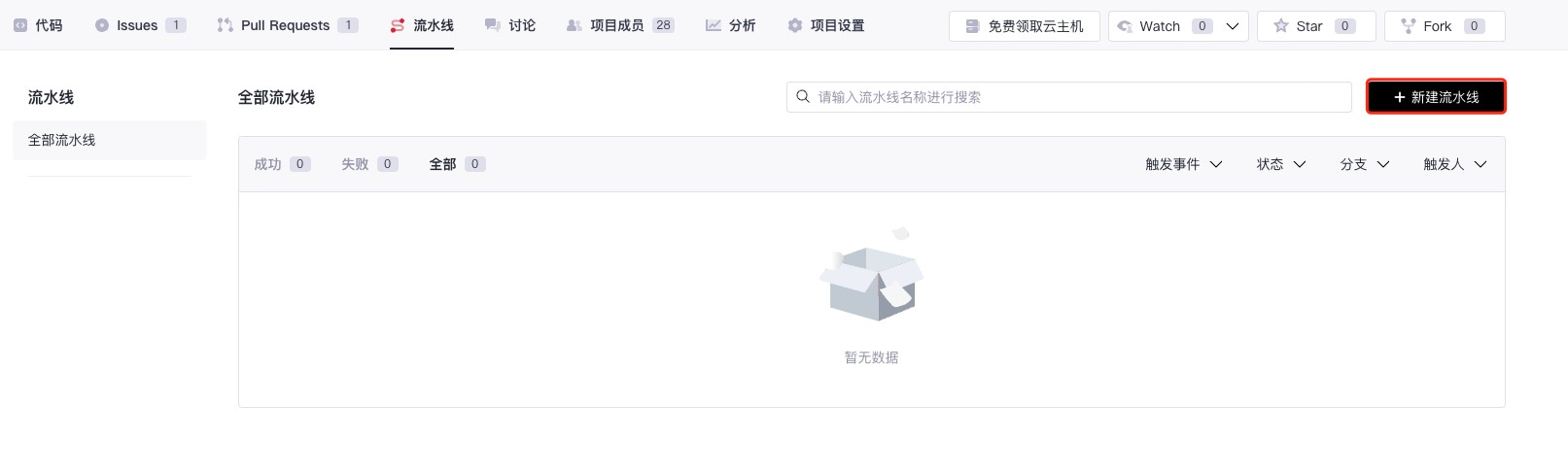
On the project's "Pipeline" tab, click the "New Pipeline" button.
-
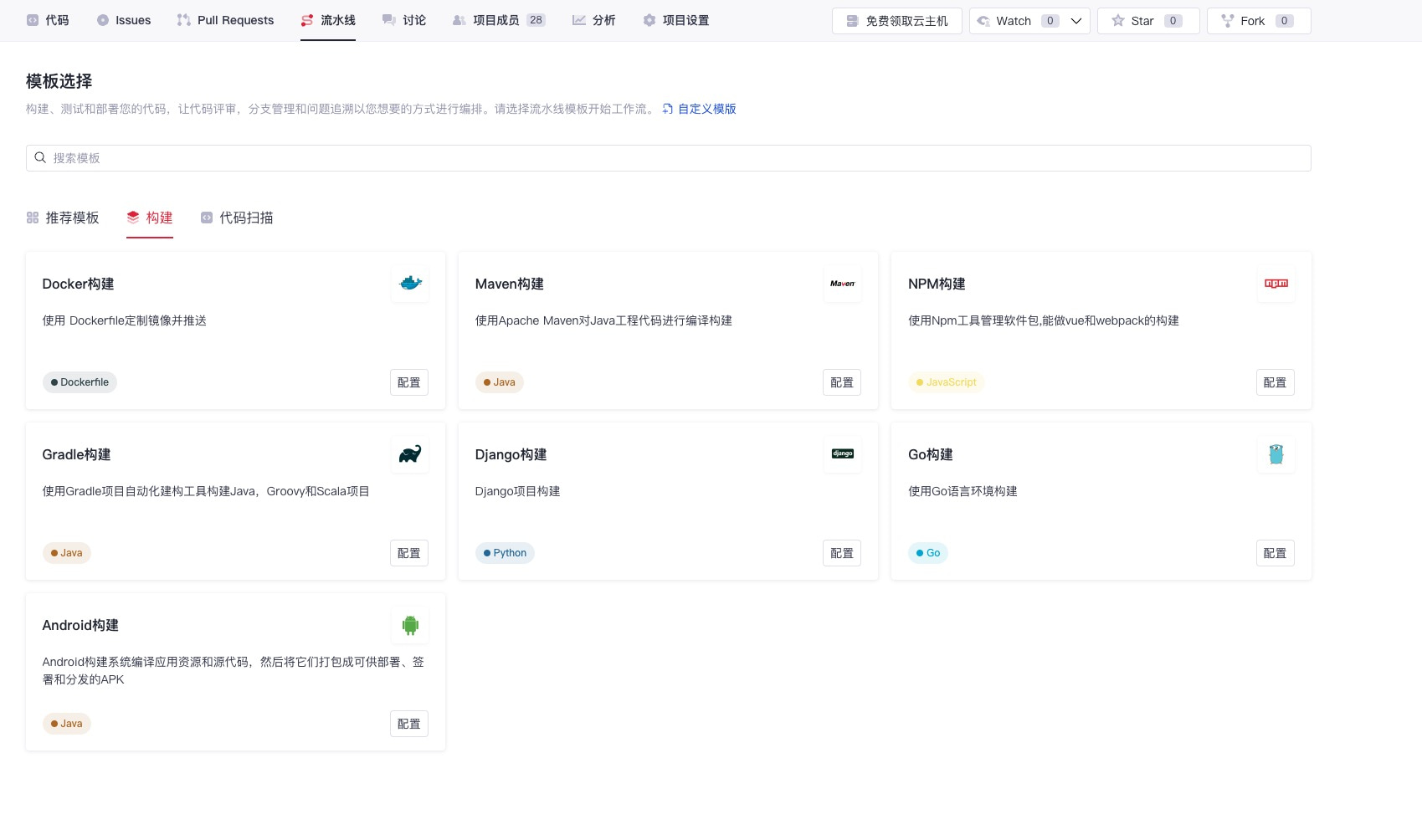
Select a template. GitCode provides various predefined workflow templates, and you can choose the appropriate one based on your project requirements.
Running the Pipeline
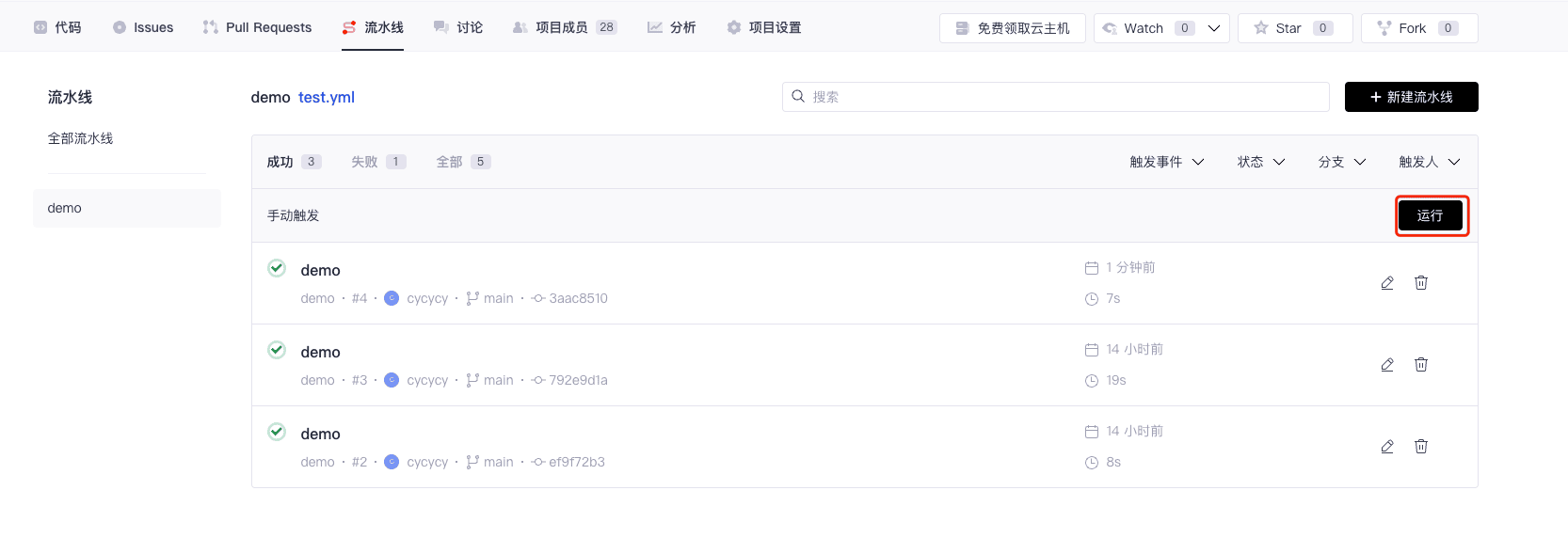
After configuration, click the "Run" button to start the pipeline. GitCode will automatically execute tasks such as building and testing according to the definitions in the workflow file.
Viewing Results
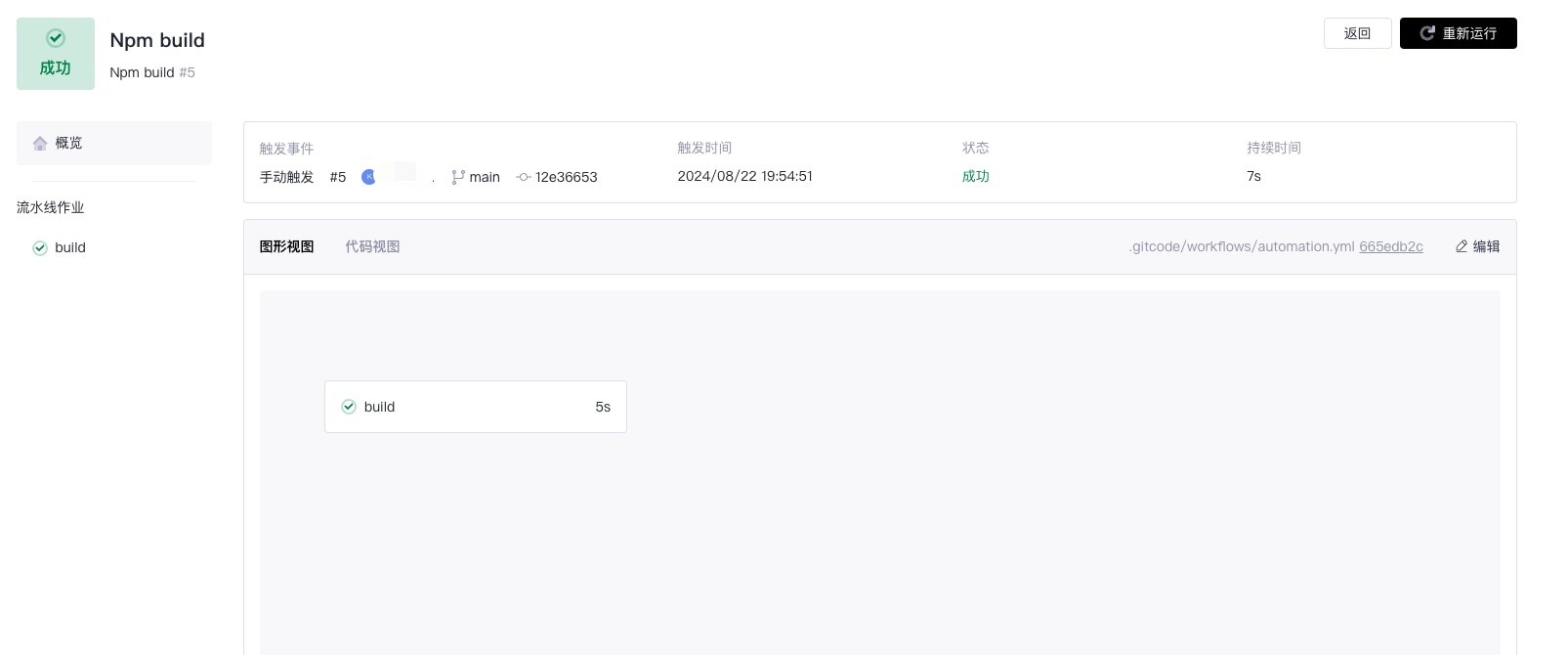
After the pipeline execution is completed, you can view detailed execution results in the GitCode interface, including the output and status of each step.
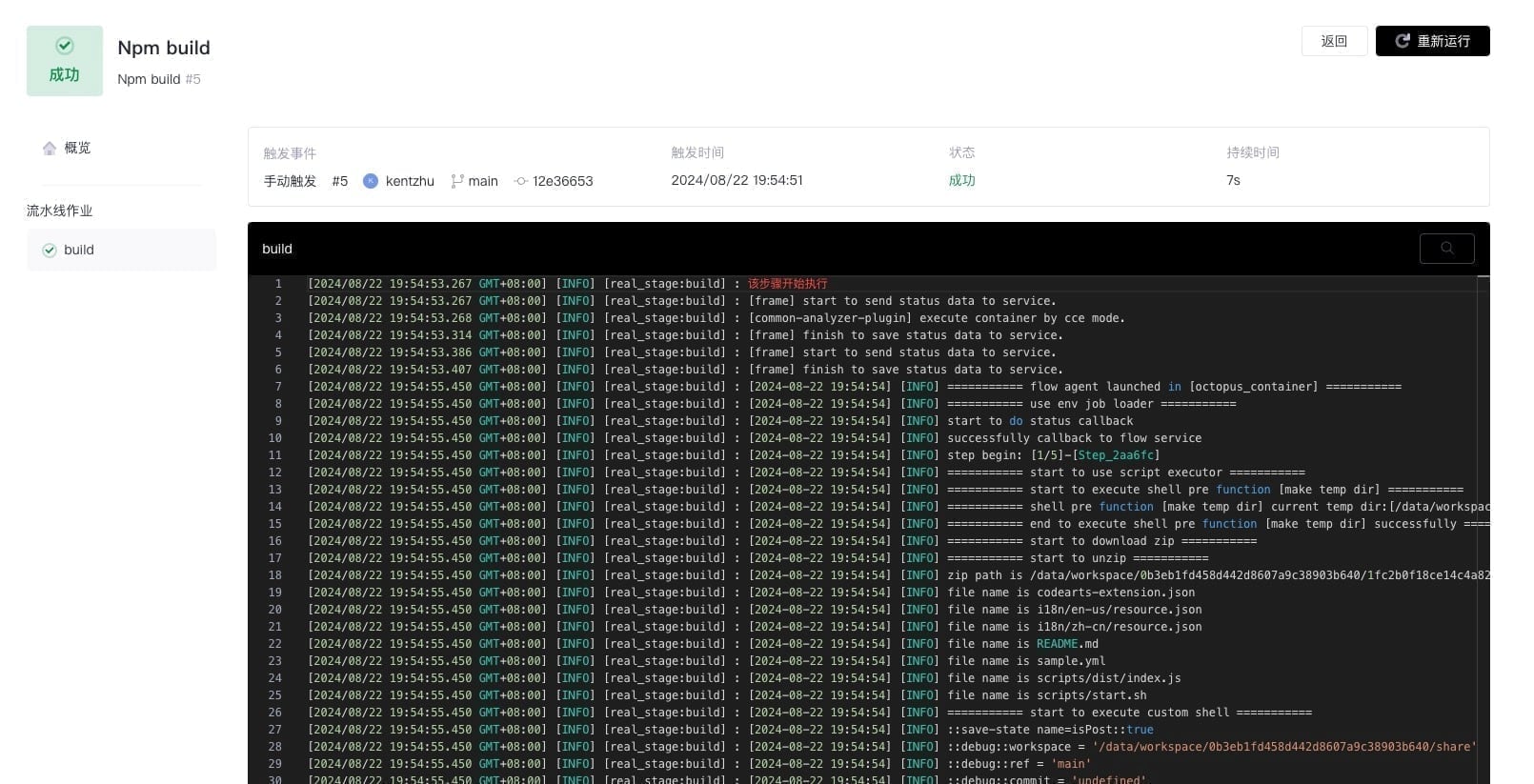
Each pipeline execution is recorded, and users can view detailed execution records on the GitCode pipeline page. These records include the trigger time of the pipeline, the execution status (success, failure, or in progress), the log output of each step, and the execution duration, among other information.