SSH Public Key Management
In GitCode, you can achieve secure code hosting and commit operations through SSH (Secure Shell Protocol) public keys. SSH public keys offer the following advantages:
- Convenient Access: After using SSH public keys, you do not need to enter the password each time, making access to GitCode repositories more efficient.
- Access Control: You can associate SSH public keys with specific repositories to flexibly manage project access permissions.
- SSH public keys are used in pairs with private keys; please keep your private key safe and avoid disclosure.
- If you use GitCode on multiple devices, it is recommended to generate independent SSH key pairs for each device.
Types of SSH Keys
GitCode supports the following two types of SSH keys:
ED25519 SSH Key
- Higher Security: According to Practical Cryptography With Go, ED25519 keys are more secure than RSA keys.
- Wide Support: Since OpenSSH 6.5 introduced ED25519 in 2014, all major operating systems have supported this key type.
RSA SSH Key
- Key Length Recommendation: If using RSA keys, it is recommended that the key length be 4096 bits (at least 2048 bits) to ensure security.
- Compatibility: By default, the
ssh-keygencommand generates RSA keys with a length of 1024 bits; it is recommended to upgrade to a higher strength. - Security Reminder: Before OpenSSH 7.8, RSA keys' default fingerprints were based on MD5, posing security risks. If you are still using old RSA keys, it is recommended to upgrade to a more secure encryption format.
Generating SSH Keys
Generating ED25519 SSH Key
-
Open Terminal
- On Linux/macOS, open the system terminal.
- On Windows, you can use Cmd, PowerShell, or Git Bash.
-
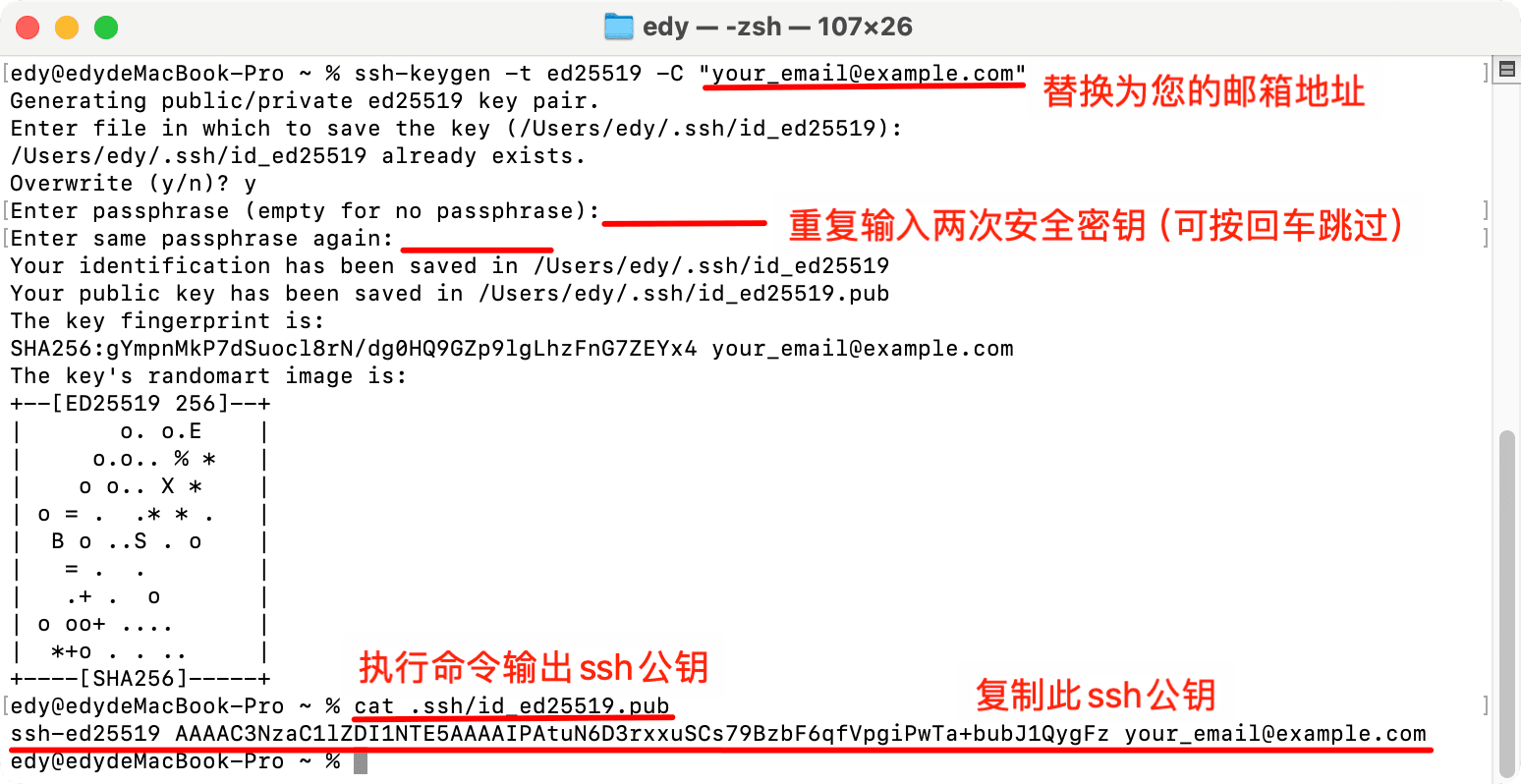
Enter the command to generate the key
Run the following command, replacing
your_email@example.comwith your email address:ssh-keygen -t ed25519 -C "your_email@example.com"-t ed25519: Specifies the key type as ED25519.-C "your_email@example.com": Adds a comment, typically using your email address for easy identification of the key.
-
Choose the key save location
After running the command, you will see the following prompt:
Generating public/private ed25519 key pair.
Enter file in which to save the key (/Users/user/.ssh/id_ed25519):- Press Enter to accept the default location (
~/.ssh/id_ed25519). - If you need to customize the save path, input a new path, e.g.,
~/.ssh/my_custom_key.
- Press Enter to accept the default location (
-
Set a key password (optional but recommended)
Next, the system will prompt you to set a password:
Enter passphrase (empty for no passphrase):
Enter same passphrase again:- Input a secure password to protect your private key (it is recommended to use a strong password).
- If no password is needed, press Enter to skip.
提示Setting a password means you will need to enter it every time you use the SSH key, preventing unauthorized use of the private key.
-
Confirm successful key generation
If the operation is successful, you will see output similar to the following:
Your identification has been saved in /Users/user/.ssh/id_ed25519
Your public key has been saved in /Users/user/.ssh/id_ed25519.pub
The key fingerprint is:
SHA256:x8gFyNRIg5UsIhqYOnsDYhyxXJNhwBU2WcLs11b421g your_email@example.com
The key's randomart image is:
+--[ED25519 256]--+
|o+*@*O==o        |
|*o*=* *o.o       |
|+=o. .. o .      |
|*o . . + = E     |
|o+  . . S B      |
|. o      + .     |
| . .             |
|                 |
|                 |
+----[SHA256]-----+ -
View the generated key
You can view the content of the generated public key with the following command:
cat ~/.ssh/id_ed25519.pubYou will get output similar to the following:
ssh-ed25519 AAAAC3NzaC1lZDI1NTE5AAAAIJx8z8z8z8z8z8z8z8z8z8z8z8z8z8z8z8z8z8z8z your_email@example.comCopy this public key content for later addition to GitCode.
Generating RSA SSH Key
RSA is a widely supported SSH key type suitable for most scenarios. To ensure security, it is recommended to use a key length of 4096 bits (at least 2048 bits).
-
Enter the command to generate the key
Run the following command, replacing
your_email@example.comwith your email address:ssh-keygen -t rsa -b 4096 -C "your_email@example.com"-
-t rsa: Specifies the key type as RSA. -
-b 4096: Specifies the key length as 4096 bits (recommended). -
-C "your_email@example.com": Adds a comment, typically using your email address for easy identification of the key.
-
-
Choose the key save location
After running the command, you will see the following prompt:
Generating public/private rsa key pair.
Enter file in which to save the key (/home/user/.ssh/id_rsa):-
Press Enter to accept the default location (
~/.ssh/id_rsa). -
If you need to customize the save path, input a new path, e.g.,
~/.ssh/my_custom_key.
-
-
Set a key password (optional but recommended)
Next, the system will prompt you to set a password:
Enter passphrase (empty for no passphrase):
Enter same passphrase again:-
Input a secure password to protect your private key (it is recommended to use a strong password).
-
If no password is needed, press Enter to skip.
Password's PurposeSetting a password means you will need to enter it every time you use the SSH key, preventing unauthorized use of the private key.
-
-
Confirm successful key generation
If the operation is successful, you will see output similar to the following:
Your identification has been saved in /Users/.ssh/id_rsa
Your public key has been saved in /Users/.ssh/id_rsa.pub
The key fingerprint is:
SHA256:Ub+LOdZzqYTdq5t+mDAErdkTtzUbnB8VPXJs/cTBDPA your_email@example.com
The key's randomart image is:
+---[RSA 4096]----+
|         ....o==B|
|        ..o.o.*O=|
|        .= o.E+*+|
|        o.+ ... o|
|        S. ..    |
|          o* o . |
|          *o*o+  |
|         . oo=.. |
|           .*+.  |
+----[SHA256]-----+-
Private Key:
~/.ssh/id_rsa(do not disclose). -
Public Key:
~/.ssh/id_rsa.pub(can be uploaded to GitCode).
-
-
View the generated key
You can view the content of the generated public key with the following command:
cat ~/.ssh/id_rsa.pubOutput example:
ssh-rsa AAAAB3NzaC1yc2EAAAABIwAAAQEArV1... your_email@example.comCopy this public key content for later addition to GitCode.
RSA Keys for OpenSSH 6.5 ~ 7.8
Before OpenSSH 7.8, RSA keys' default fingerprints were based on MD5, posing security risks. If you are using OpenSSH 6.5 to 7.8, it is recommended to take the following measures:
-
Upgrade existing RSA keys
If you already have RSA keys, you can upgrade them to a more secure OpenSSH format with the following command:
ssh-keygen -o -f ~/.ssh/id_rsa -
Generate new RSA keys
If you need to generate new RSA keys, use the following command:
ssh-keygen -o -t rsa -b 4096 -C "your_email@example.com"-o: Saves the private key in a more secure OpenSSH format.
Adding SSH Public Key to GitCode
Now, you can copy your created SSH key to your GitCode account. Taking ED25519 SSH key as an example, you can follow these steps:
-
Copy the SSH public key content
Copy the public key from the file where you saved the SSH key. The following command can save the ED25519 information to the clipboard of the specified operating system:
macOS
pbcopy < ~/.ssh/id_ed25519.pubLinux (requires the xclip package)
xclip -sel clip < ~/.ssh/id_ed25519.pubGit Bash on Windows
cat ~/.ssh/id_ed25519.pub | clipIf you are using RSA keys, replace accordingly.
-
Log in to GitCode, go to "Personal Settings" -> "Security Settings" -> "SSH Public Key"
-
Click "+ SSH Public Key"
-
In the "Key Name" field, add a descriptive name for the public key
-
Paste the copied public key content into the "Key" text box
-
Click "Create" to complete the operation
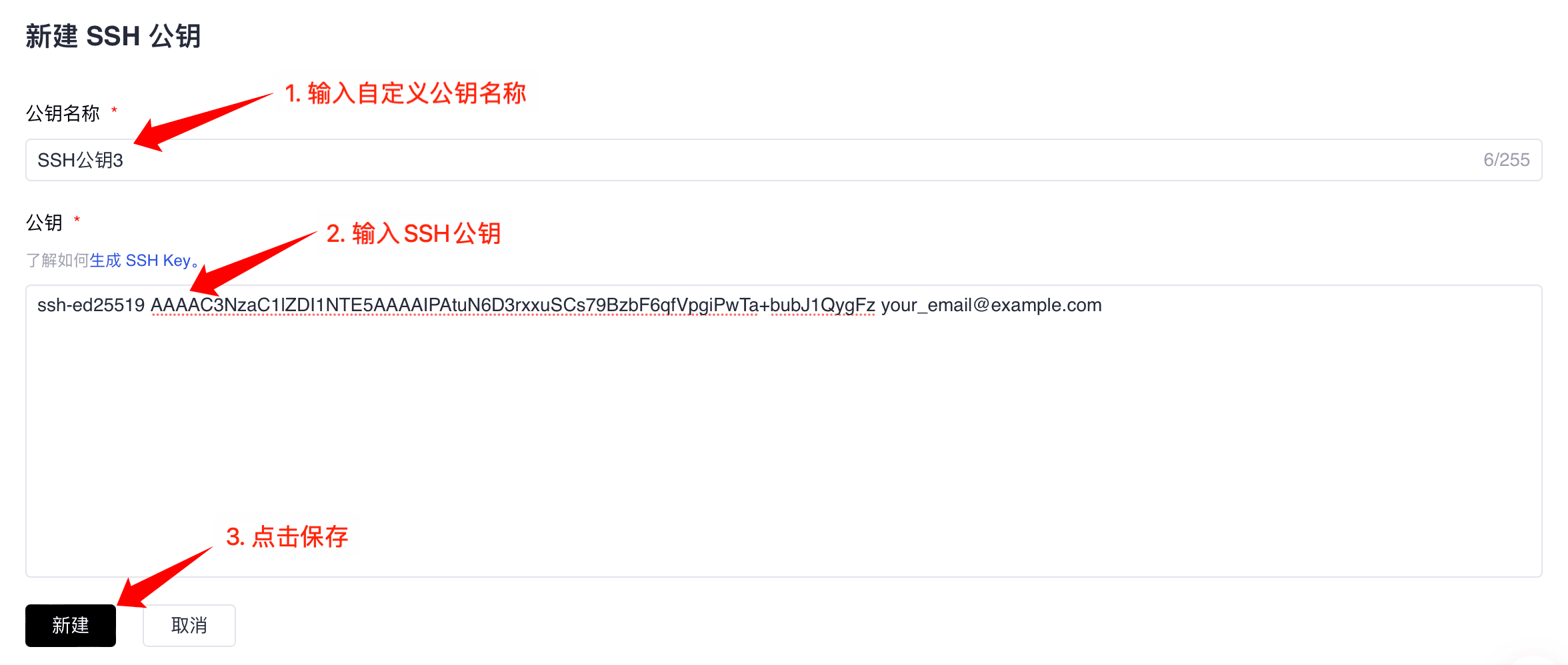
If you manually copied the public SSH key, make sure you copied the entire key starting with ssh-ed25519 (or ssh-rsa) and ending with your email address.
Testing SSH Connection
To test if you have correctly added the SSH key, run the following command in the terminal:
ssh -T git@gitcode.com
When you first connect to GitCode via SSH, it will ask whether you trust the GitCode host address. Upon confirming yes, GitCode will be added as a trusted host:
The authenticity of host 'gitcode.com (121.36.6.22)' can't be established.
ECDSA key fingerprint is SHA256:HbW3g8zUjNSksFbqTiUWPWg2Bq1x8xdGUrliXFzSnUw.
Are you sure you want to continue connecting (yes/no)? yes
Warning: Permanently added 'gitcode.com' (ECDSA) to the list of known hosts.
Once added to the list of known hosts, it will no longer ask you to verify the authenticity of the GitCode host again. Running the above command again will only show the message Welcome to GitCode, [username].
If the welcome message does not appear, you can solve the issue by running ssh in verbose mode:
ssh -Tv git@gitcode.com
Using SSH Keys with Non-Default Paths
If you use non-default file paths for SSH key pairs, configure the SSH client to point to the private SSH key for GitCode.
You can configure this with the following commands:
eval $(ssh-agent -s)
ssh-add <path to private SSH key>
These settings will be saved in the ~/.ssh/config file. Here are two examples of SSH keys dedicated to GitCode:
# GitCode
  Host gitcode.com
  Preferredauthentications publickey
  IdentityFile ~/.ssh/gitcode_rsa

# Github instance
  Host github.com
  Preferredauthentications publickey
  IdentityFile ~/.ssh/example_github_rsa
Public SSH keys must be unique for GitCode because they will be bound to your account. SSH keys serve as unique identifiers when pushing code via SSH, which is why they need to map uniquely to a single user.
Configuring SSH Keys for Projects
If you need to use different keys based on the repository of the project you are working on, you can execute the following command in the repository:
git config core.sshCommand "ssh -o IdentitiesOnly=yes -i ~/.ssh/private-key-filename-for-this-repository -F /dev/null"
This configuration ignores the SSH agent and requires at least Git 2.10.
Multi-Account SSH Configuration
The method of setting up SSH keys for each project individually also applies to using multiple accounts on GitCode. Additionally, you can distinguish between different accounts by configuring SSH keys in the ~/.ssh/config file. Here’s how:
In the ~/.ssh/config file, set aliases for each account and specify the corresponding SSH key file. Example configuration:
# User1 Account Configuration
Host user_1.gitcode.com
  Hostname gitcode.com
  PreferredAuthentications publickey
  IdentityFile ~/.ssh/example_ssh_key1

# User2 Account Configuration
Host user_2.gitcode.com
  Hostname gitcode.com
  PreferredAuthentications publickey
  IdentityFile ~/.ssh/example_ssh_key2
Host: Custom alias (e.g.,user_1.gitcode.com) to distinguish between different accounts.IdentityFile: Specifies the path to the private key file for the corresponding account.
-
IdentityFileconfiguration must be inside theHostblock, not outside. IfIdentityFileis configured outside theHostblock, SSH and Git will fail to correctly identify the key, leading to login failures. -
Note: The permissions of the private and public key files should be set to readable only by the user. Run the following commands:
chmod 0400 ~/.ssh/example_ssh_key1
chmod 0400 ~/.ssh/example_ssh_key1.pub
Next, you can clone repositories using the configured aliases. For example, when cloning a repository for user_1, replace gitcode.com with the alias user_1.gitcode.com:
git clone git@user_1.gitcode.com:repo-org/repo.git
If you have already cloned a repository but need to switch accounts, you can modify the remote URL using the git remote set-url command. For example:
git remote set-url origin git@user_1.gitcode.com:repo-org/repo.git
Configuring SSH Keys in Eclipse
If you use Eclipse and the EGit plugin, you can add SSH keys to Eclipse by following the EGit User Guide.
Configuration on Windows Systems
On Windows, you can support Git and SSH through the following methods:
- WSL (Windows Subsystem for Linux): Install a Linux distribution (such as Ubuntu) and use its Git and SSH clients.
- Git for Windows: Install Git for Windows, which includes an SSH client.
- Other tools:
- Cygwin: An environment to run Linux tools on Windows.
- PuTTYGen: A tool for generating and managing SSH keys.
Troubleshooting
If the system prompts you to enter a password during git clone (e.g., git@gitcode.com's password:), this indicates there may be issues with the SSH configuration. Here are troubleshooting steps:
- Ensure you have correctly generated the SSH key and added the public SSH key to your GitCode account.
- Try manually registering your private SSH key with
ssh-agent, refer to Using SSH Keys with Non-Default Paths. - Try debugging the connection by running
ssh -Tv git@gitcode.com.