Contributing to Open Source Projects
Open source projects rely on community participation and contributions. AtomGit is an excellent platform that brings together many open source projects, allowing you to easily participate. This document will introduce how to contribute to projects on AtomGit.
👉 Welcome to watch the Bilibili video tutorial: Git Open Source Practice
1. Find a Suitable Open Source Project
Before starting your contribution, you need to find an open source project that interests you or is relevant:
-
Browse the Project Library:
Visit the AtomGit homepage, where you can view the latest, popular, or recommended projects.
-
Use Keyword Search:
Enter keywords in the search box to find projects related to your skills or interests.
-
Filter Projects:
Use categories, tags, and other features to filter projects and find suitable ones for contribution.
2. Get Familiar with the Project
Before deciding to contribute, it's important to understand the basic information and workflow of the project:
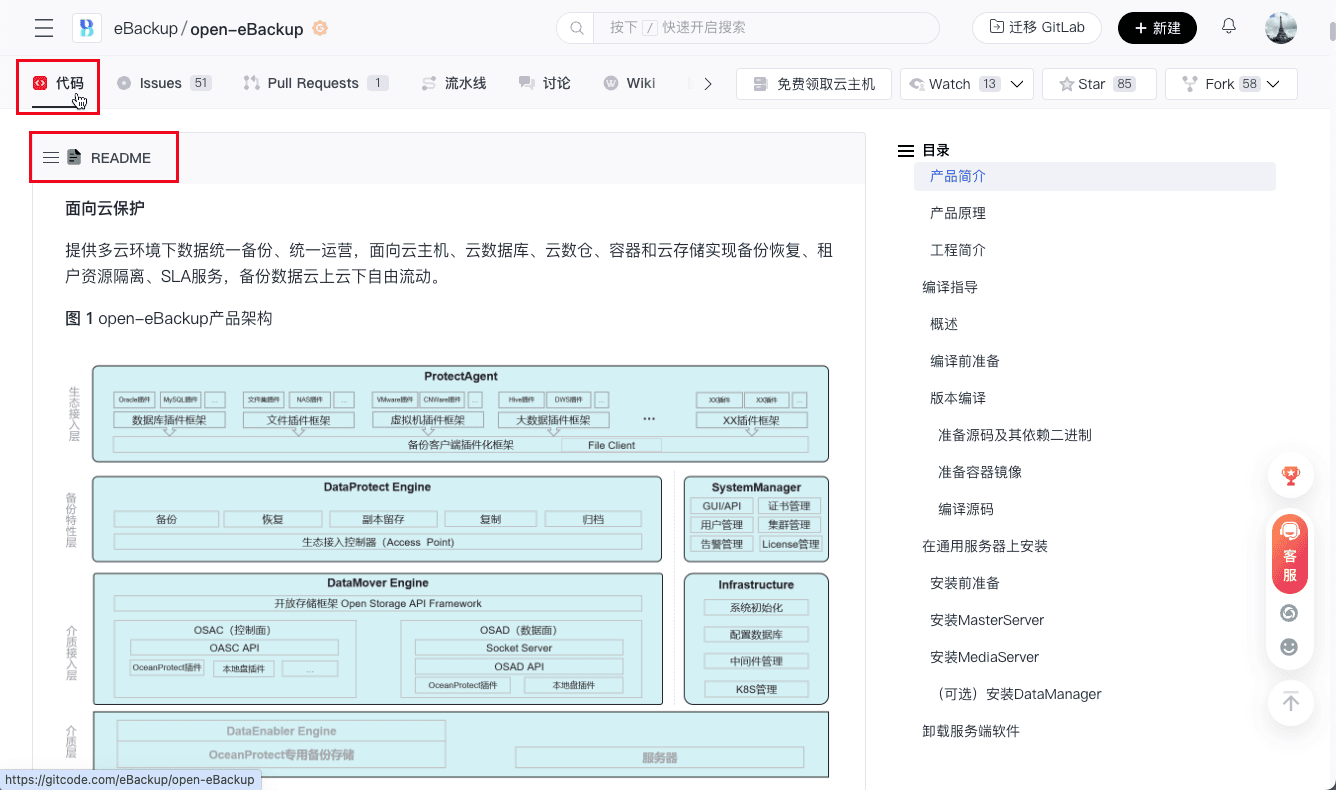
- Read the README File:
- Click on the project name to enter the project details page.
- Find the README file and related documentation to understand the purpose of the project, installation instructions, usage examples, and contribution guidelines.
-
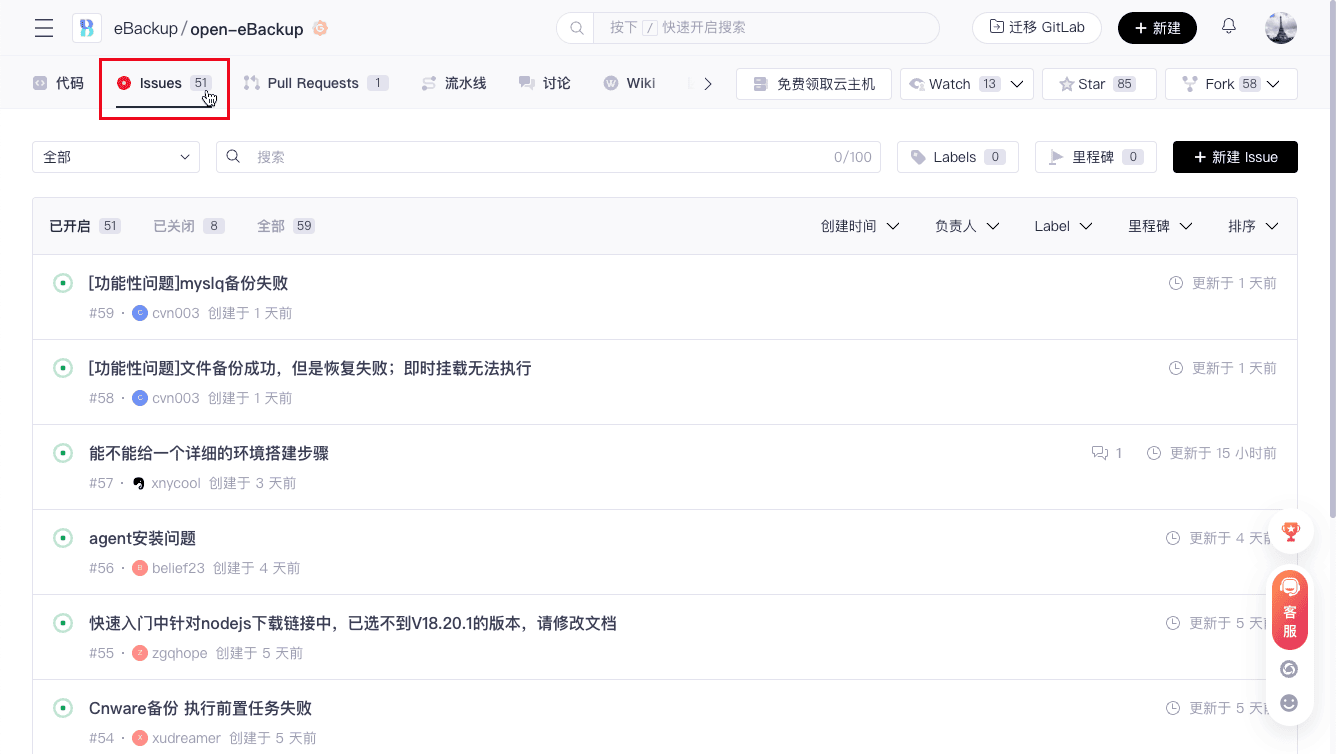
Follow Existing Issues:
Browse the "Issues" section of the project to learn about unresolved issues, ongoing features, and areas that interest you.
3. Submit Issue Feedback (Issues)
If you find a bug in the project or have improvement suggestions, you can directly submit an issue in the "Issues" section:
-
Check if a Related Issue Already Exists:
Before submitting a new issue, use the search function to see if a similar issue has already been reported.

-
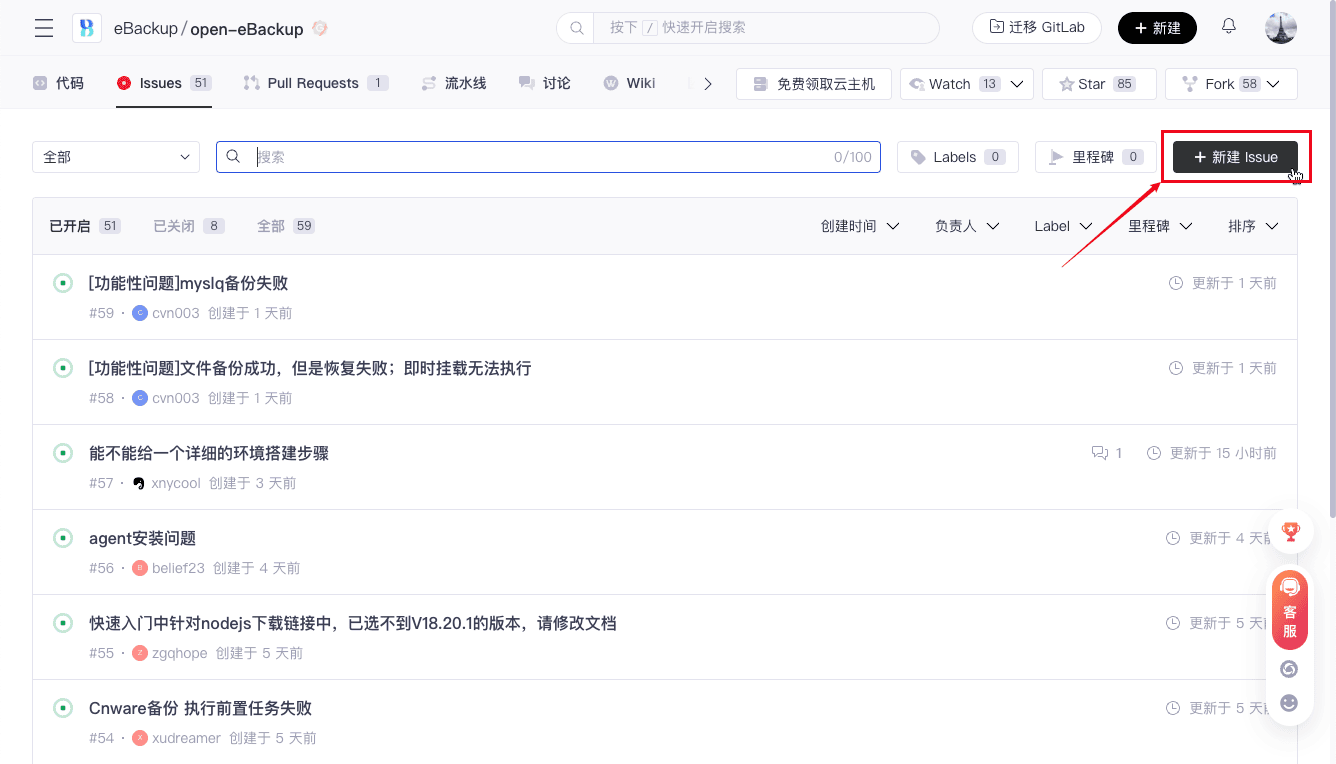
Create an Issue:
-
Click the 「New Issue」 button at the top right corner.
-
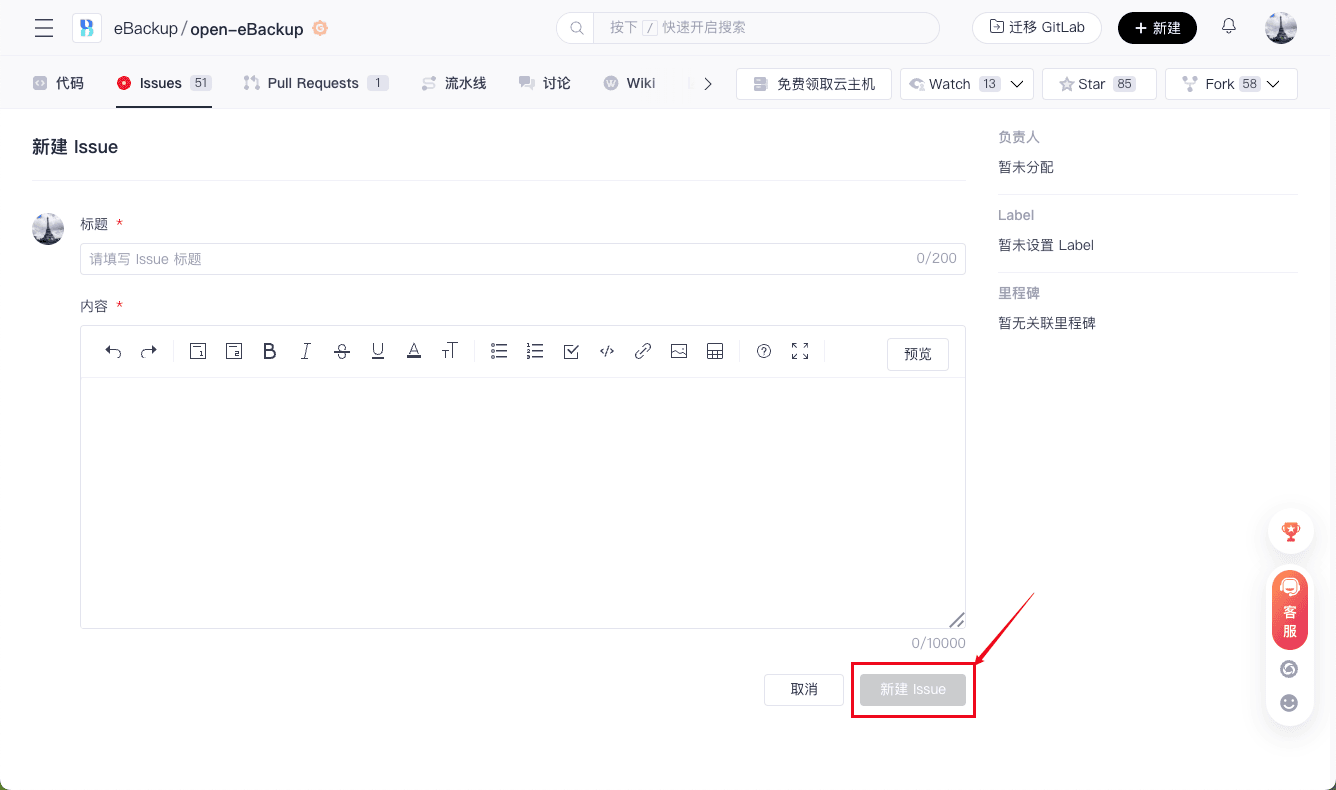
After filling in the issue title and detailed content, click 「New Issue」 to create an issue.
4. Fork the Project
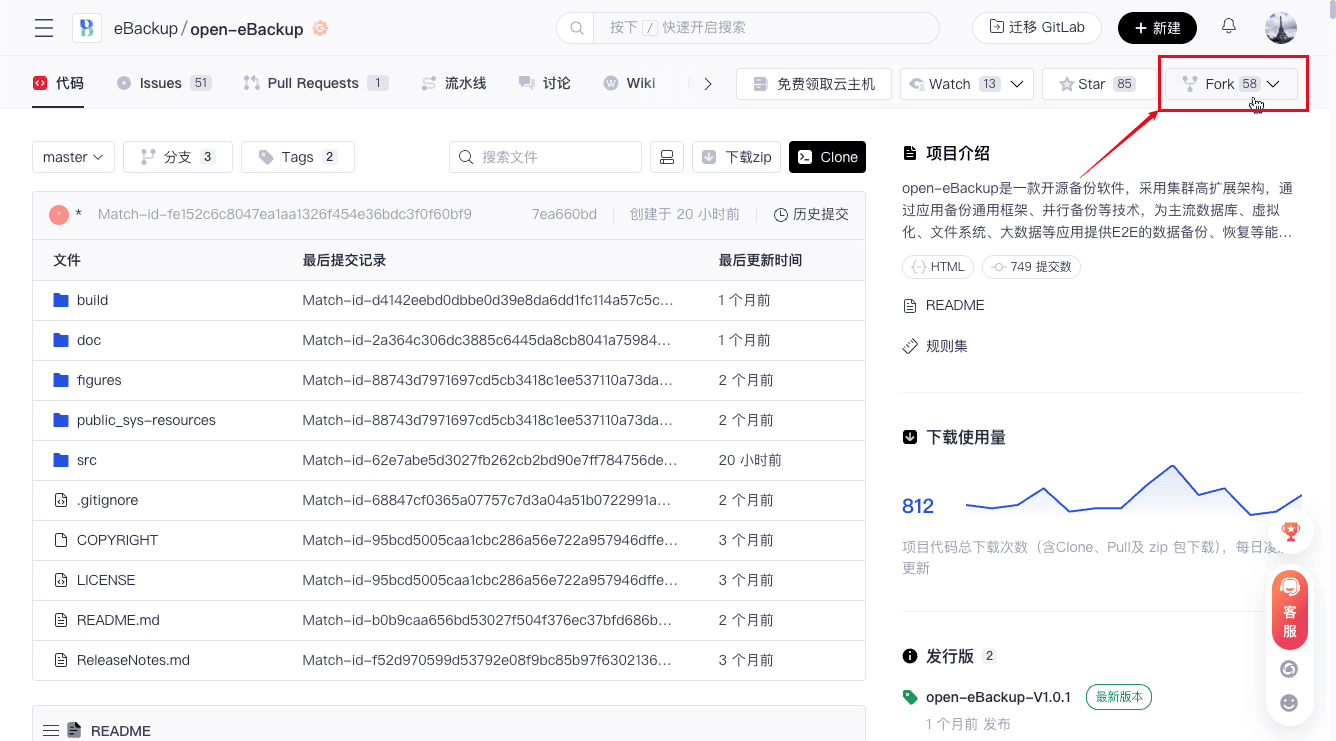
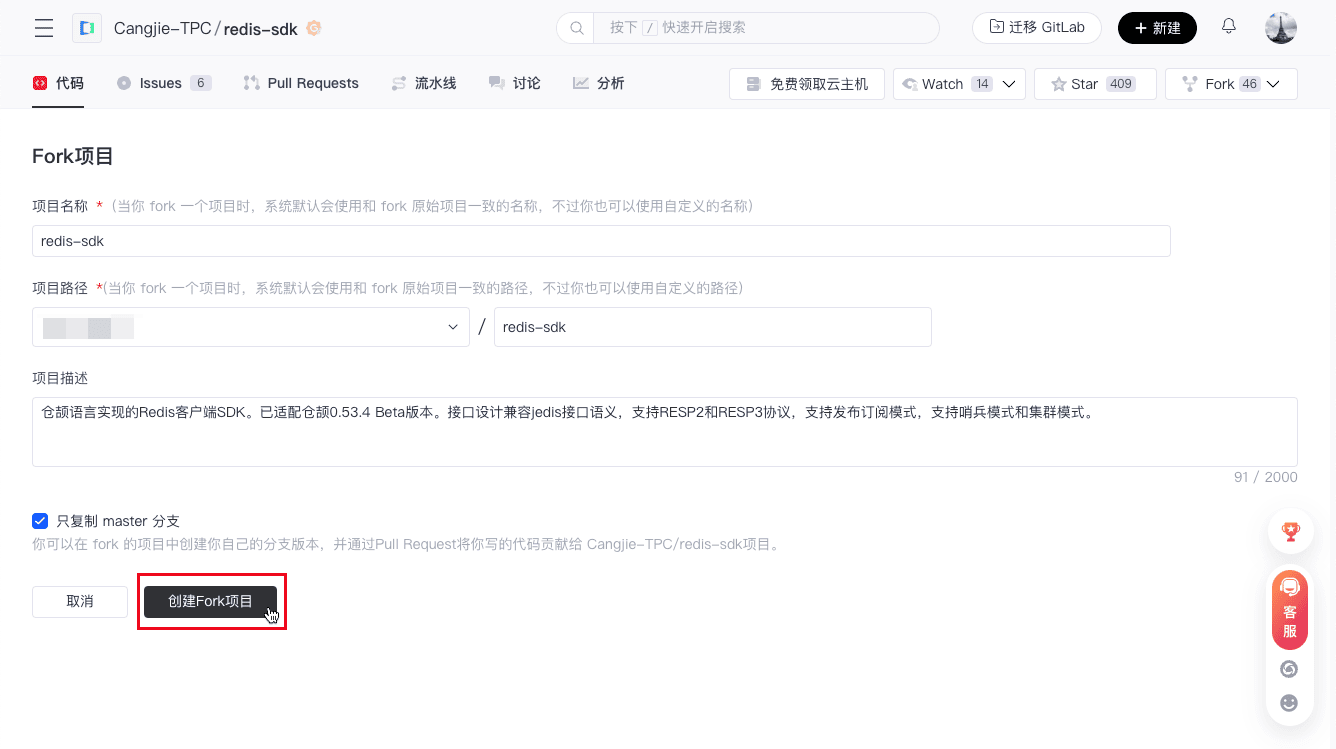
If you plan to contribute code to the project, you first need to fork it:
-
Click 「Fork」 at the top right corner to copy the project to your account.
5. Clone the Project Locally
You can clone the project to your local environment for code modification and development.
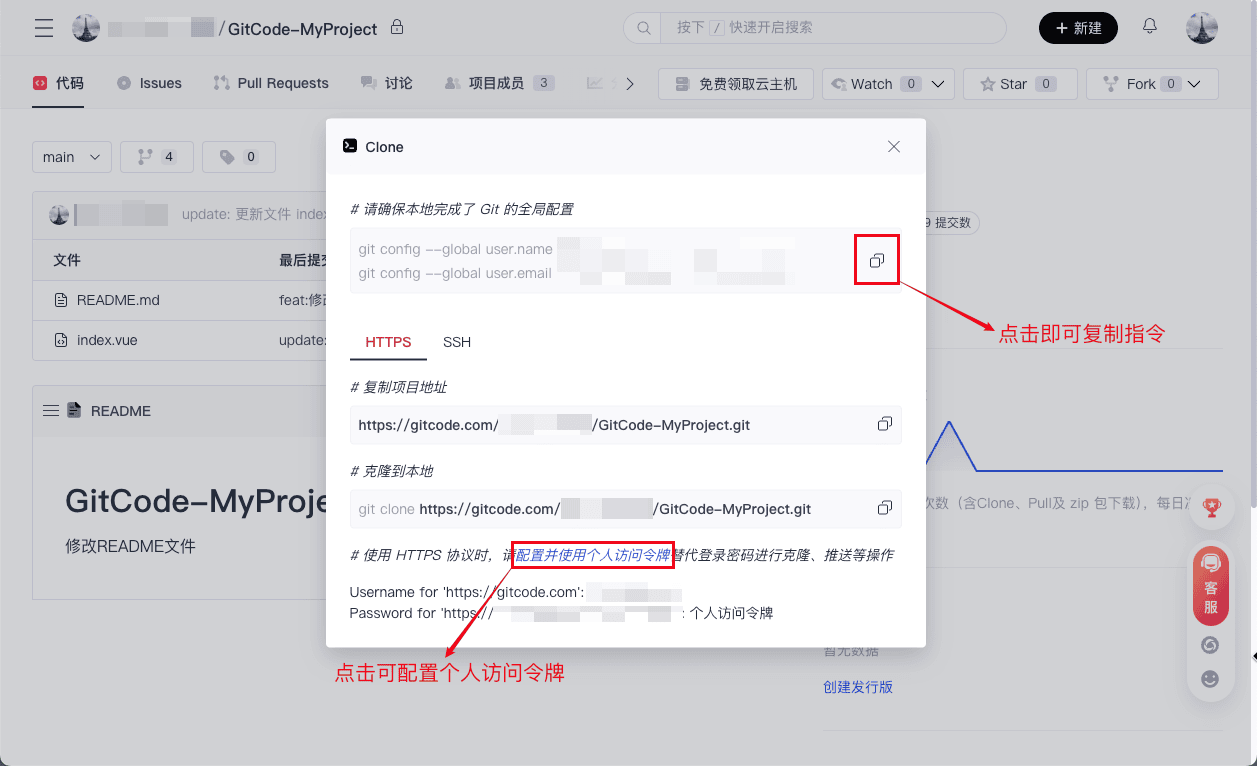
Before cloning the project, ensure that Git is globally configured on your local machine:
git config --global user.name “Your username or nickname”
git config --global user.email “Your email address”
Copy the project URL and clone it locally:
git clone project URL
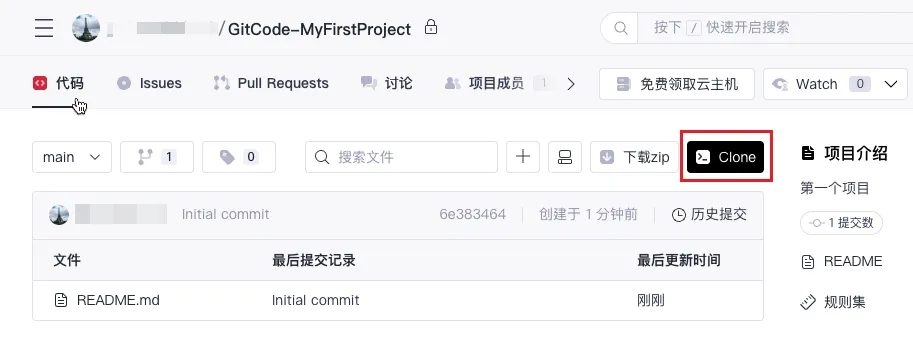
Alternatively, after entering the project, click 「Clone」 on the project page and follow the instructions to clone:
6. Create a Feature Branch
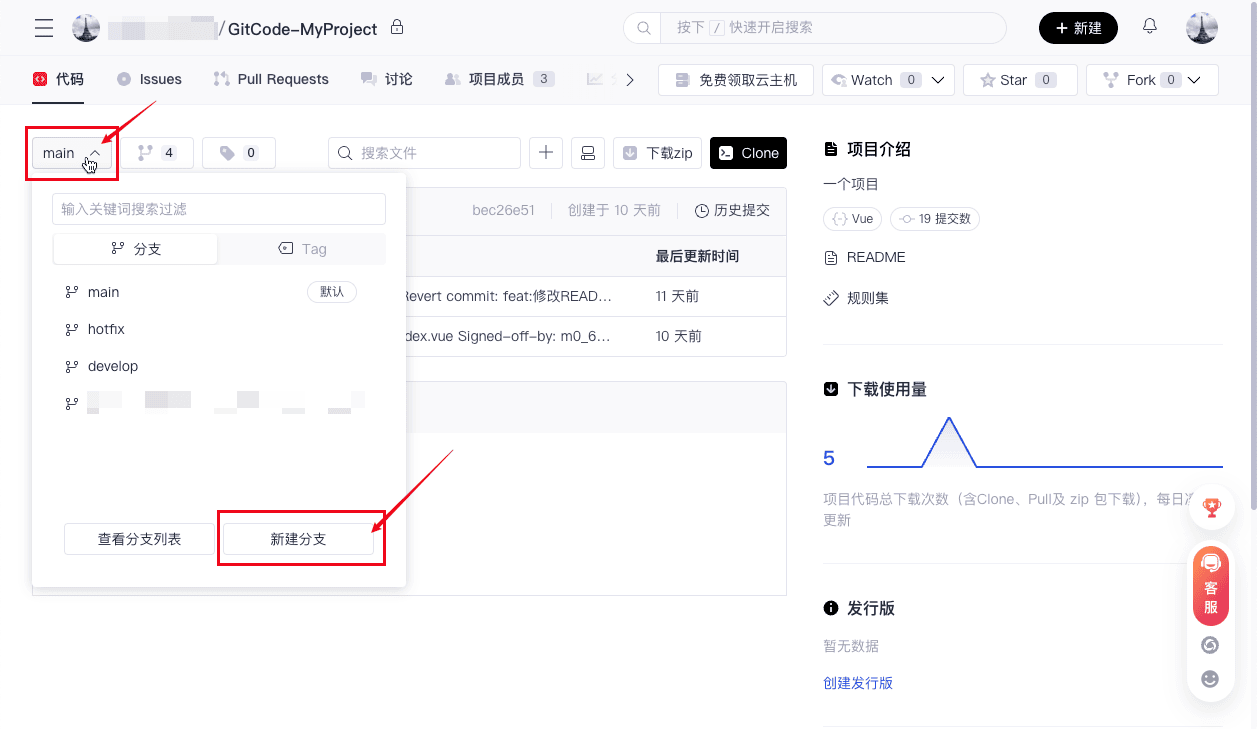
To better manage development, it is recommended to create a feature branch in your forked project:
-
You can directly create a new branch on the forked project page.
-
Alternatively, switch to your project directory in the command line and use the following command to create and switch to a new branch:
git checkout -b feature/your-feature-name
7. Submit Code Changes
After developing on the feature branch, you can submit your changes:
-
Commit the changes locally:
git add .
git commit -m "Describe your changes" -
Push the changes to your fork:
git push origin feature/your-feature-name
8. Create a Pull Request (PR)
When your pushed changes are ready to be merged into the main project, you can create a Pull Request:
-
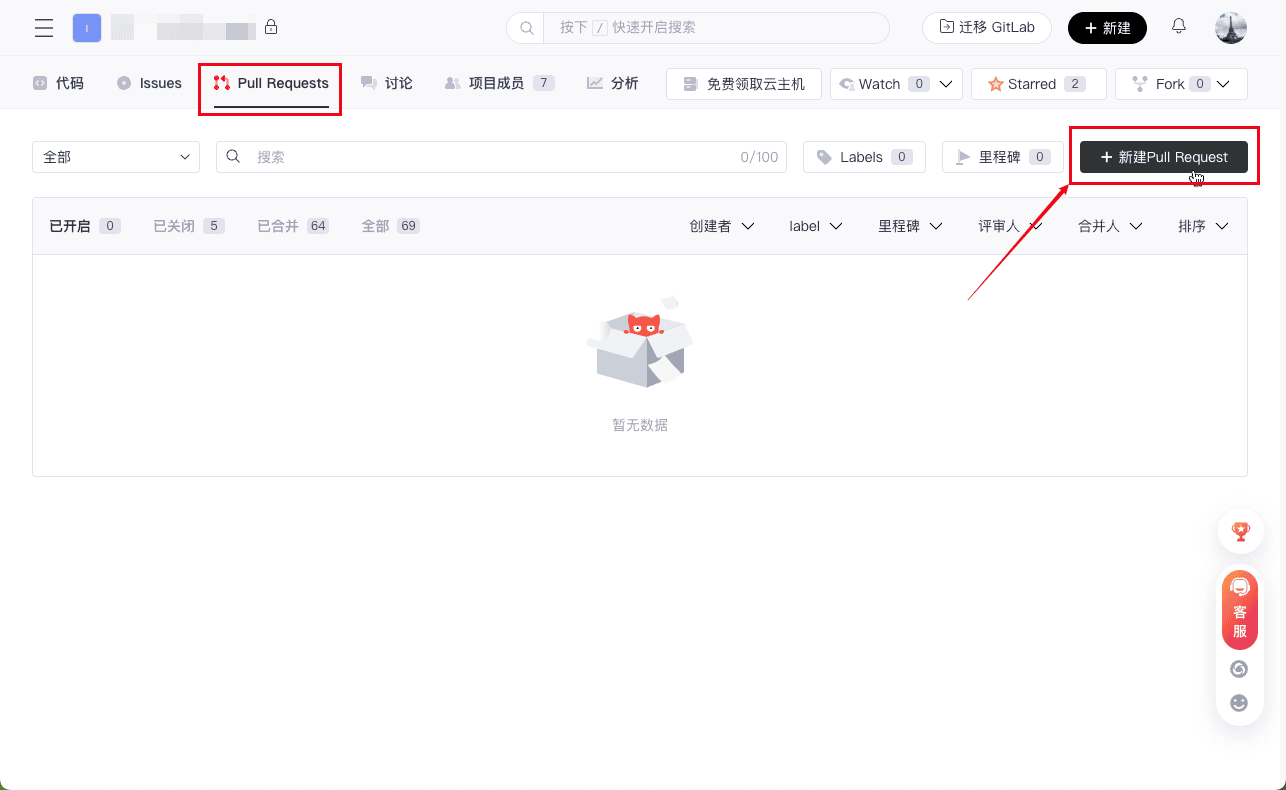
Go to the original project page and click 「New Pull Requests」.
-
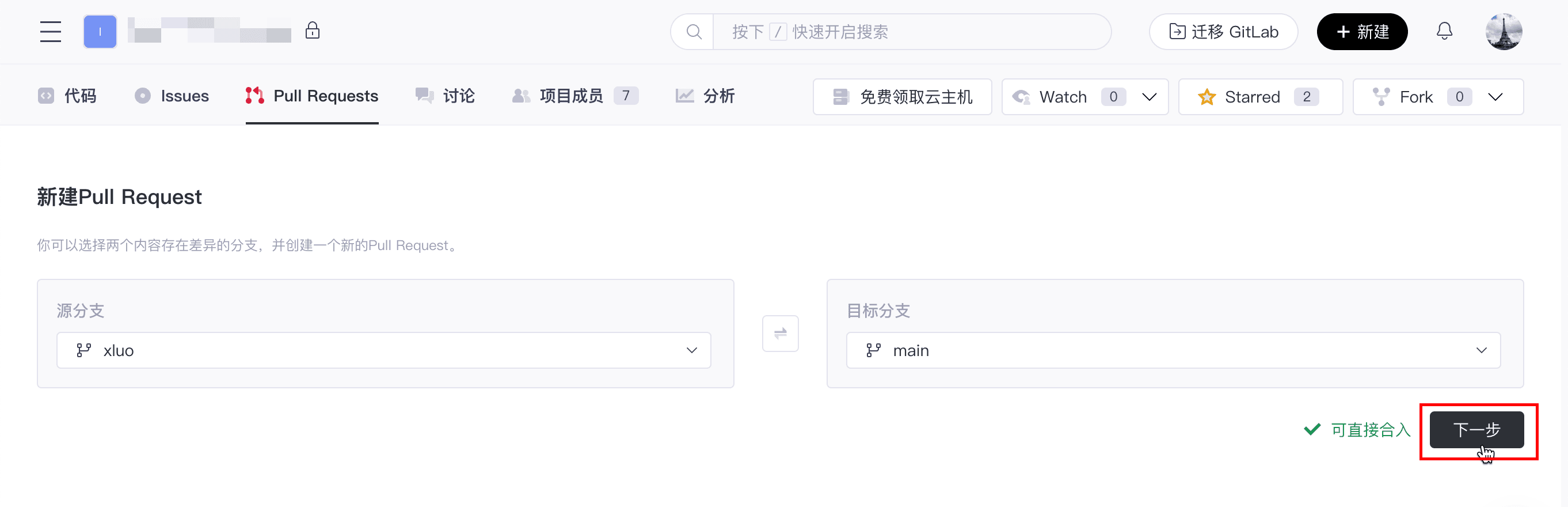
Select your feature branch and the main branch of the project for comparison.
-
Fill in the title and description of the PR, and explain in detail the changes you made and their purpose.

-
Click 「Create」 to submit the PR.
9. Participate in Code Review
After submitting the PR, the project maintainers and other contributors may review your changes:
- Feedback and Modifications:
- Pay attention to the feedback from reviewers, which may require you to make further modifications or provide more information.
- After making the necessary changes based on the feedback, submit new changes to update the PR.
10. Merge the PR
If everything goes smoothly, the project maintainer will merge your PR into the main project after the review is passed. After the PR is merged, you will become a contributor to the project, and your changes will become part of the project.
Contributing to open source projects on AtomGit is a fulfilling and rewarding process. Whether you fix bugs, add new features, or improve documentation, each of your contributions helps the project grow and allows you to gain new skills and experience. We hope this document helps you participate in open source projects smoothly. If you have any questions, feel free to ask the community or refer to the project documentation!