Wiki
Wiki is an online documentation system deeply integrated with code repositories, helping development teams efficiently build, accumulate, and share various non-code knowledge assets related to projects by providing structured directories and versioned collaboration features.
Applicable Scenarios and Value of Application
Wiki is suitable for storing structured, lengthy, and continuously maintained project documents. When the project content exceeds the capacity of a README file, Wiki is an ideal knowledge management tool.
| Scenario | Detailed Description |
|---|---|
| Project Overview | A quick start guide for new members to understand the project background, business goals, and core functions. |
| Environment Setup | Record standardized development environment configuration steps and dependency installation instructions to reduce environment setup costs. |
| Development Standards | Unify the team's code style, branch management strategy, and commit standards. |
| API Documentation | Explain interface definitions, parameter specifications, and call examples (suitable for small and medium-sized projects; for large projects, it is recommended to use professional API management tools). |
| Deployment Guide | Record the project release process, server configuration requirements, and solutions for common deployment issues. |
| Meeting Minutes | Archive technical solution discussion records, decision-making processes, and follow-up tasks. |
| Fault Recap | Record the phenomenon of online issues, root cause analysis reports, and preventive solutions. |
Operation Guide
1. Enable the Wiki Module
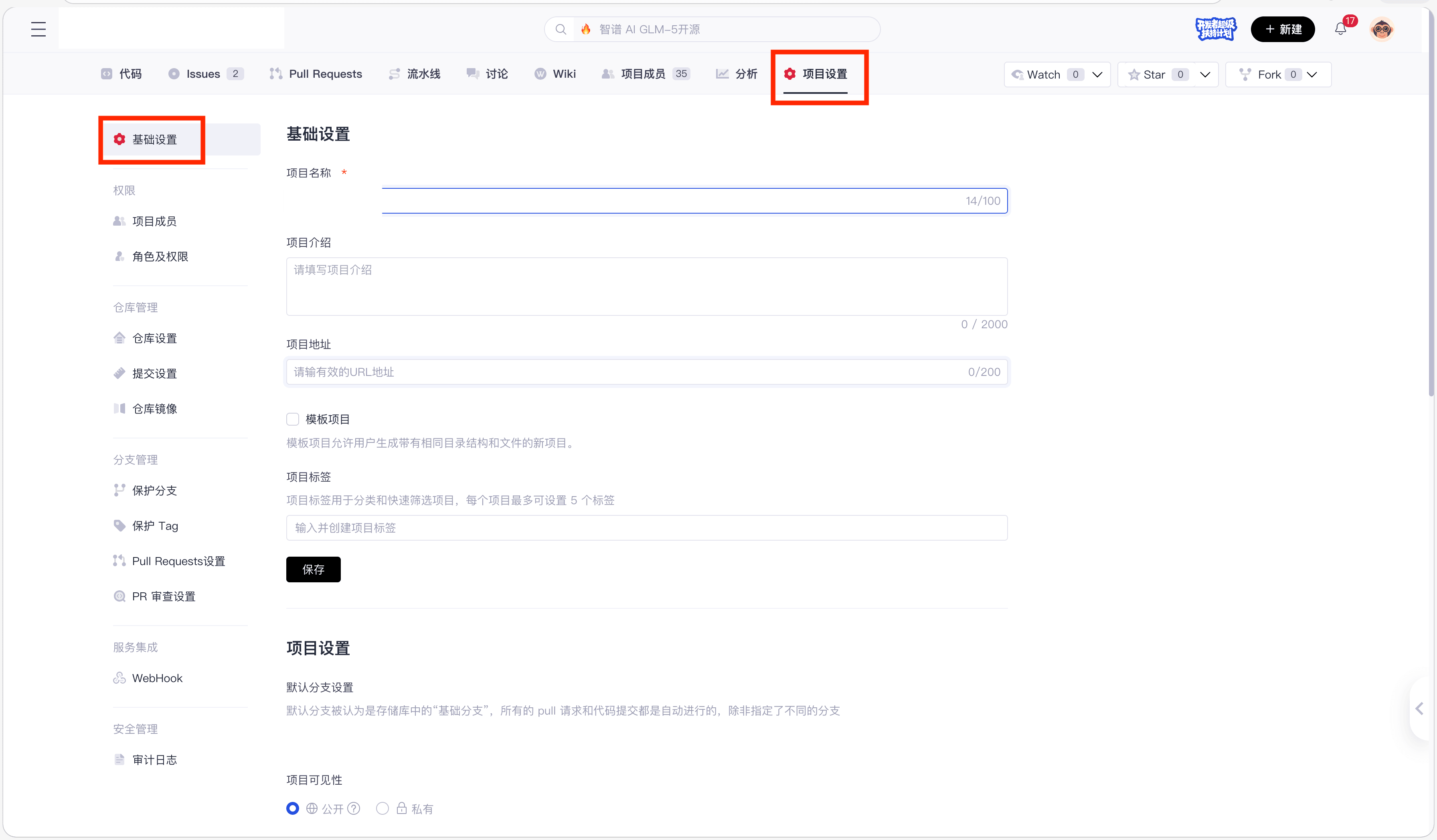
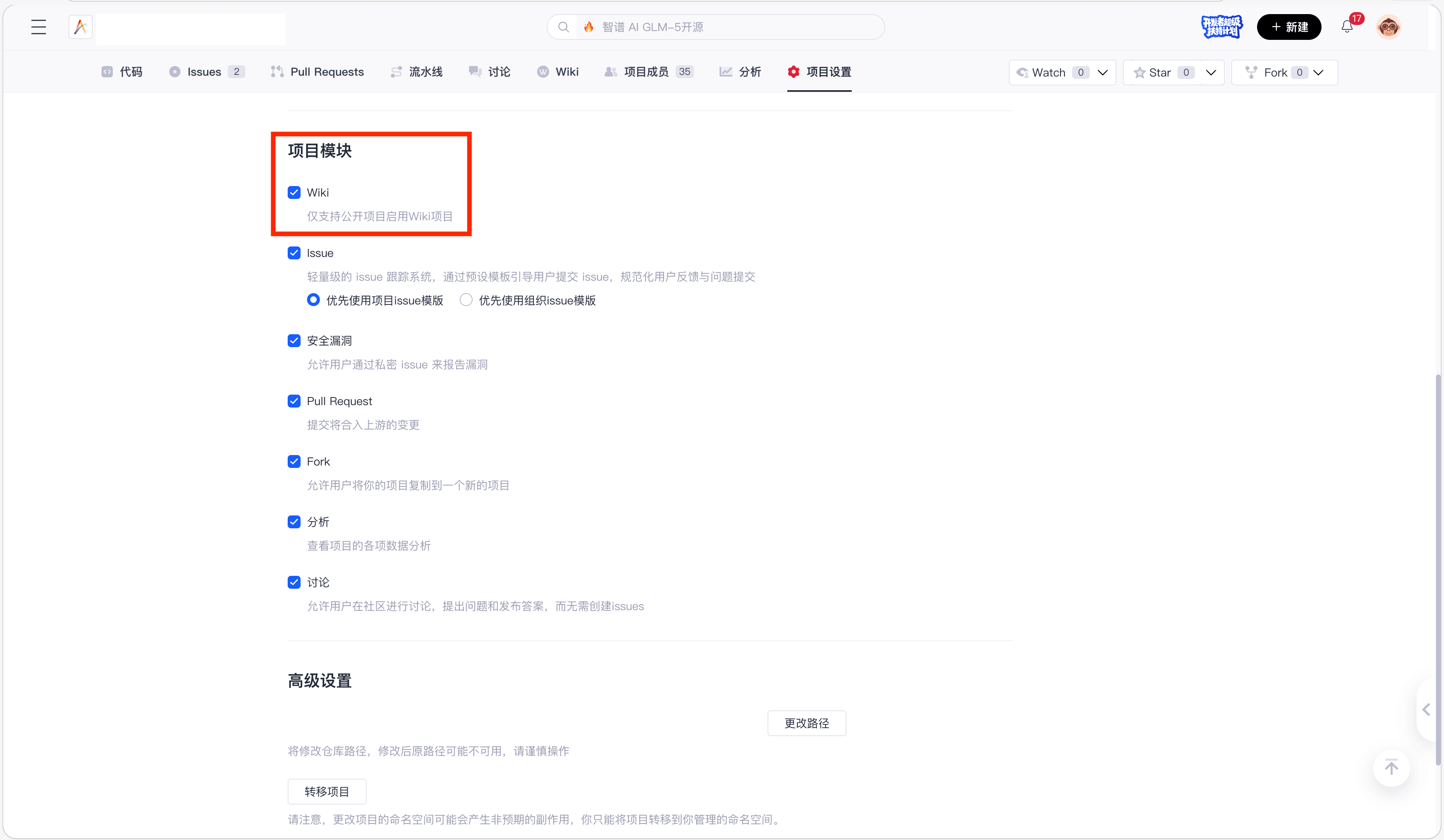
Go to 【Project Settings】—【Basic Settings】—【Project Modules】, and enable the Wiki feature.
2. Create the First Page
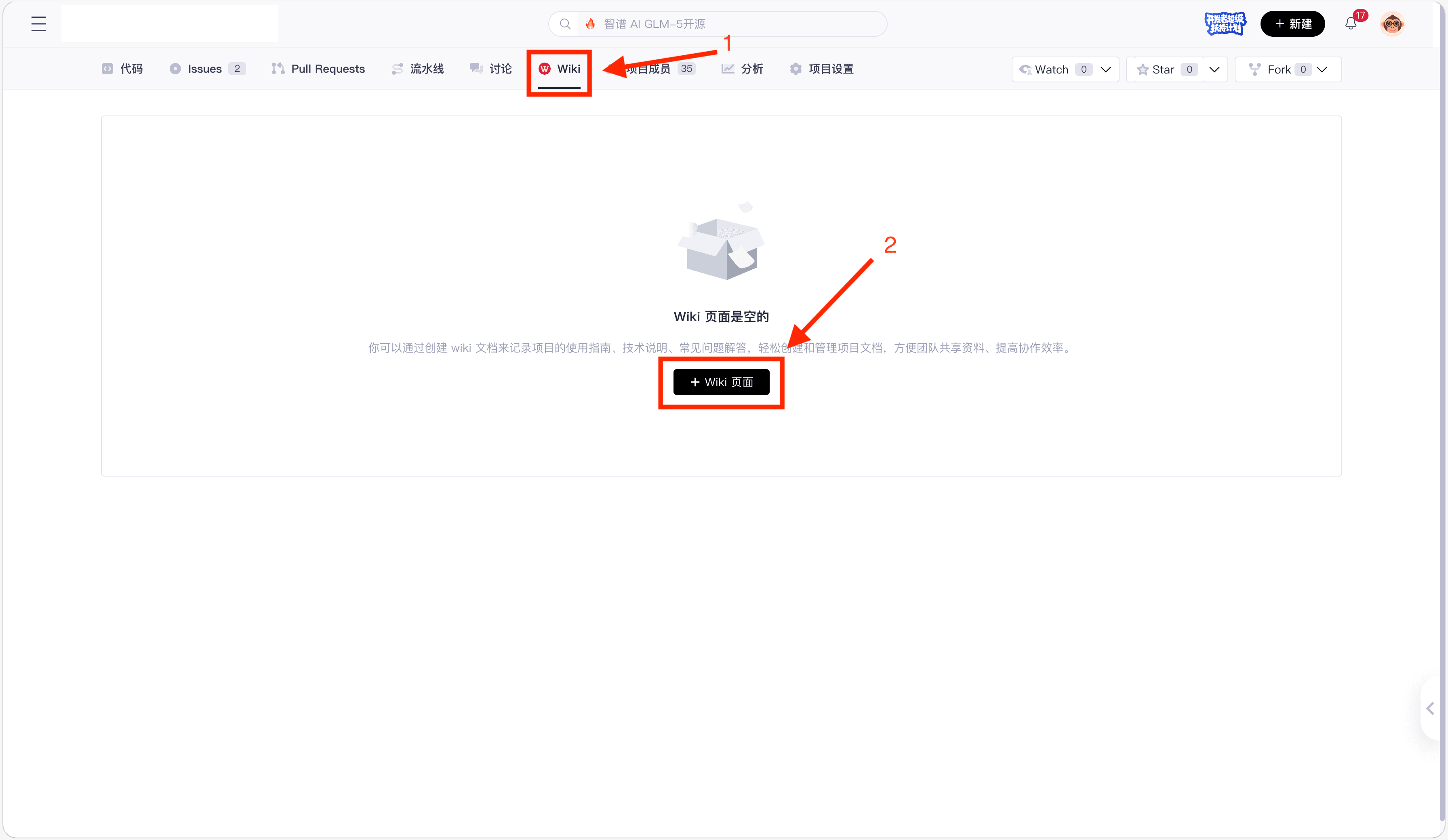
Click on the 【Wiki】 entry in the navigation bar, and select 【+ Wiki Page】 to start writing the document.
3. Configure the Homepage (Home)
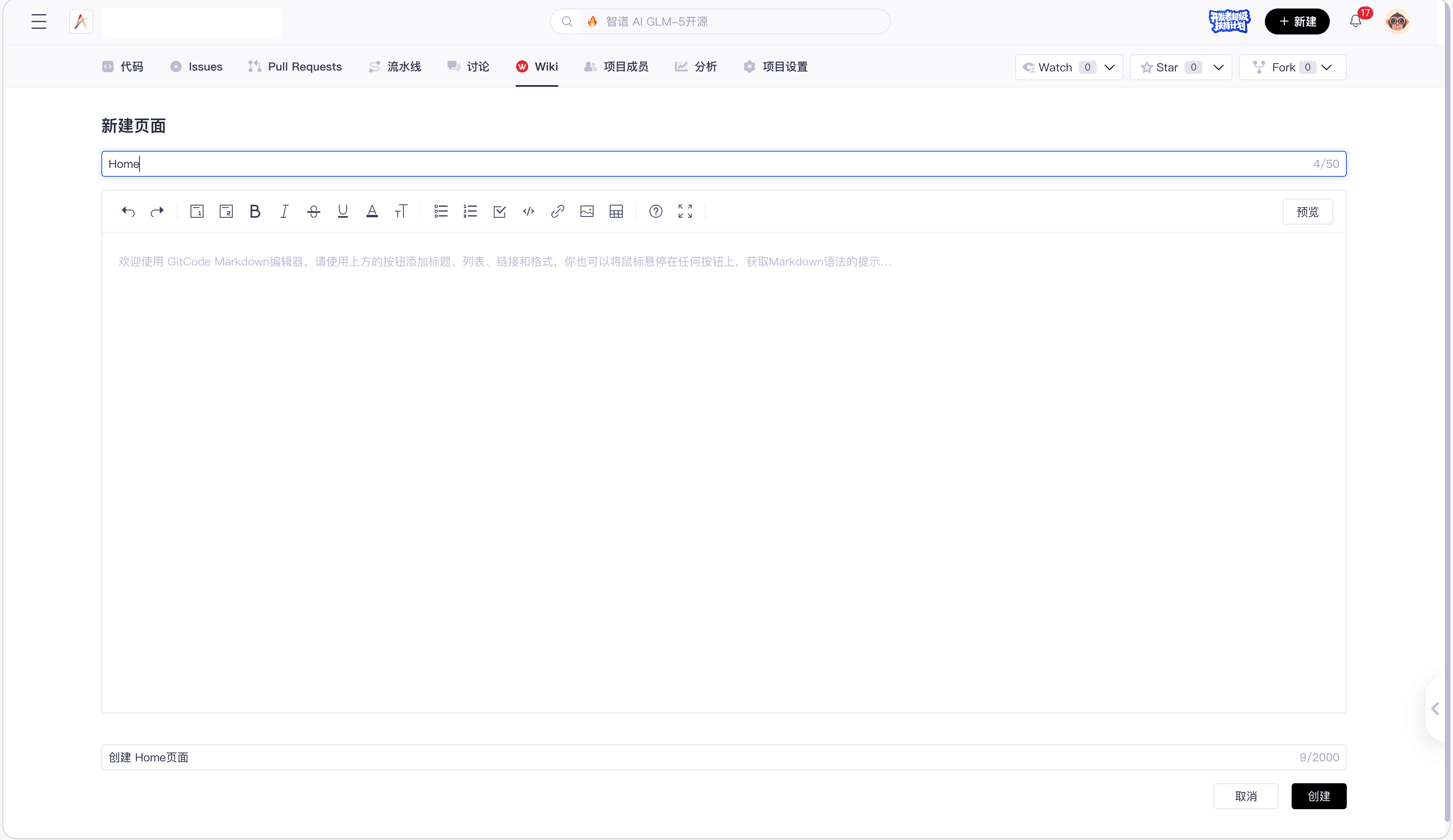
The default Home file is the portal page of the Wiki, usually used to display the global view and core information of the project.
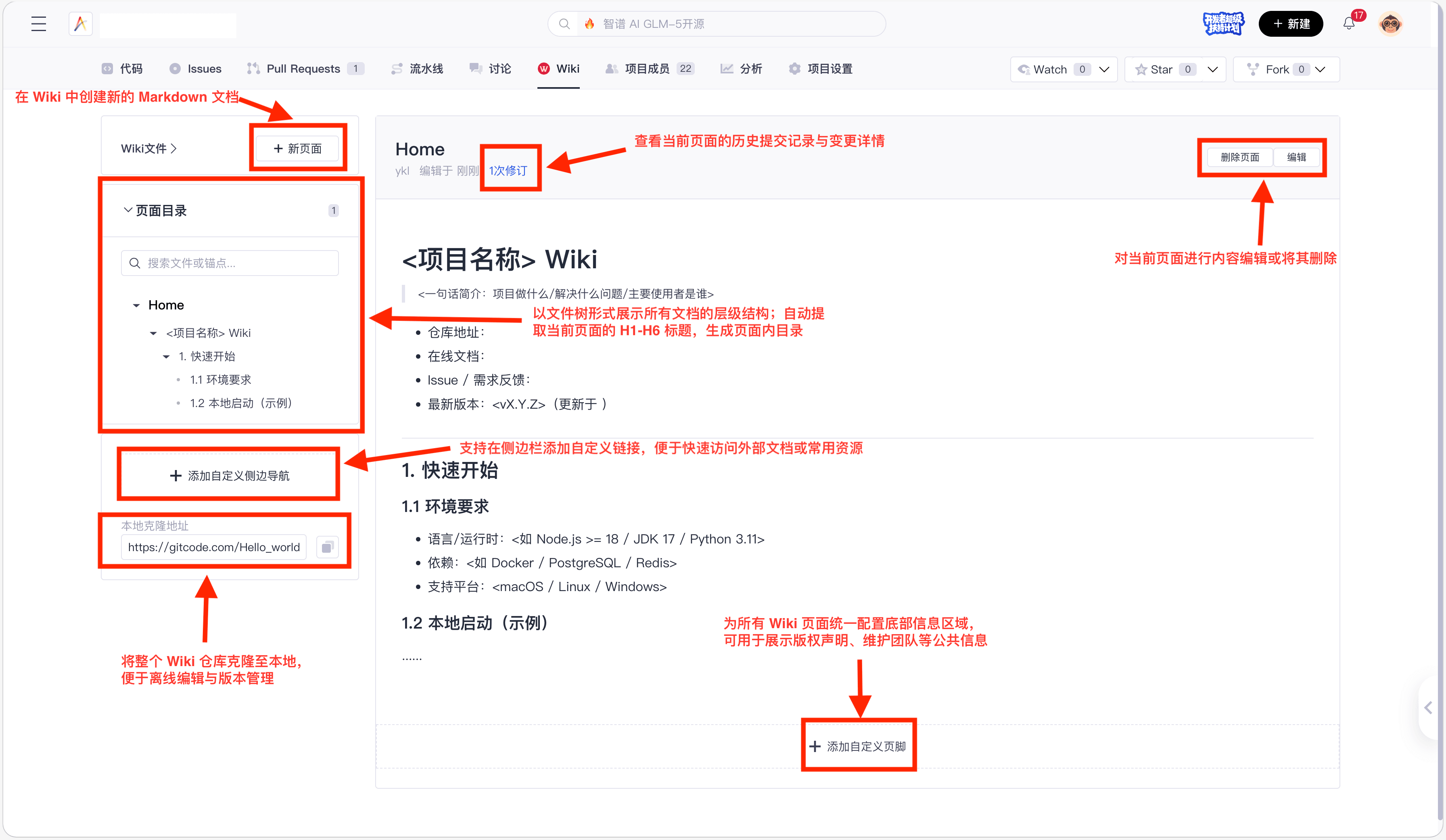
4. Overview of the Core Interface
The main functional modules of the interface are as follows:
5. Configure Sidebar and Hyperlinks
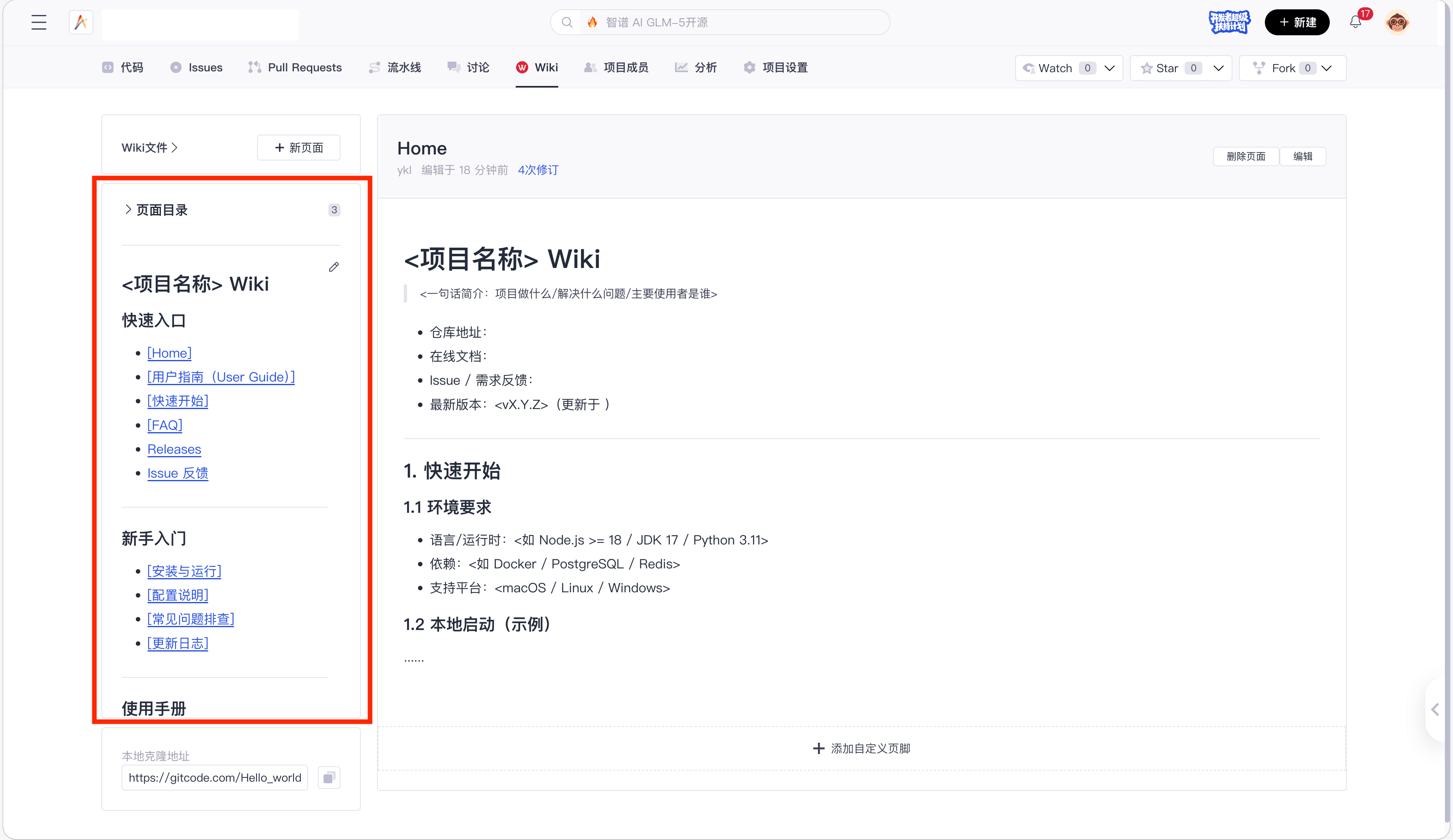
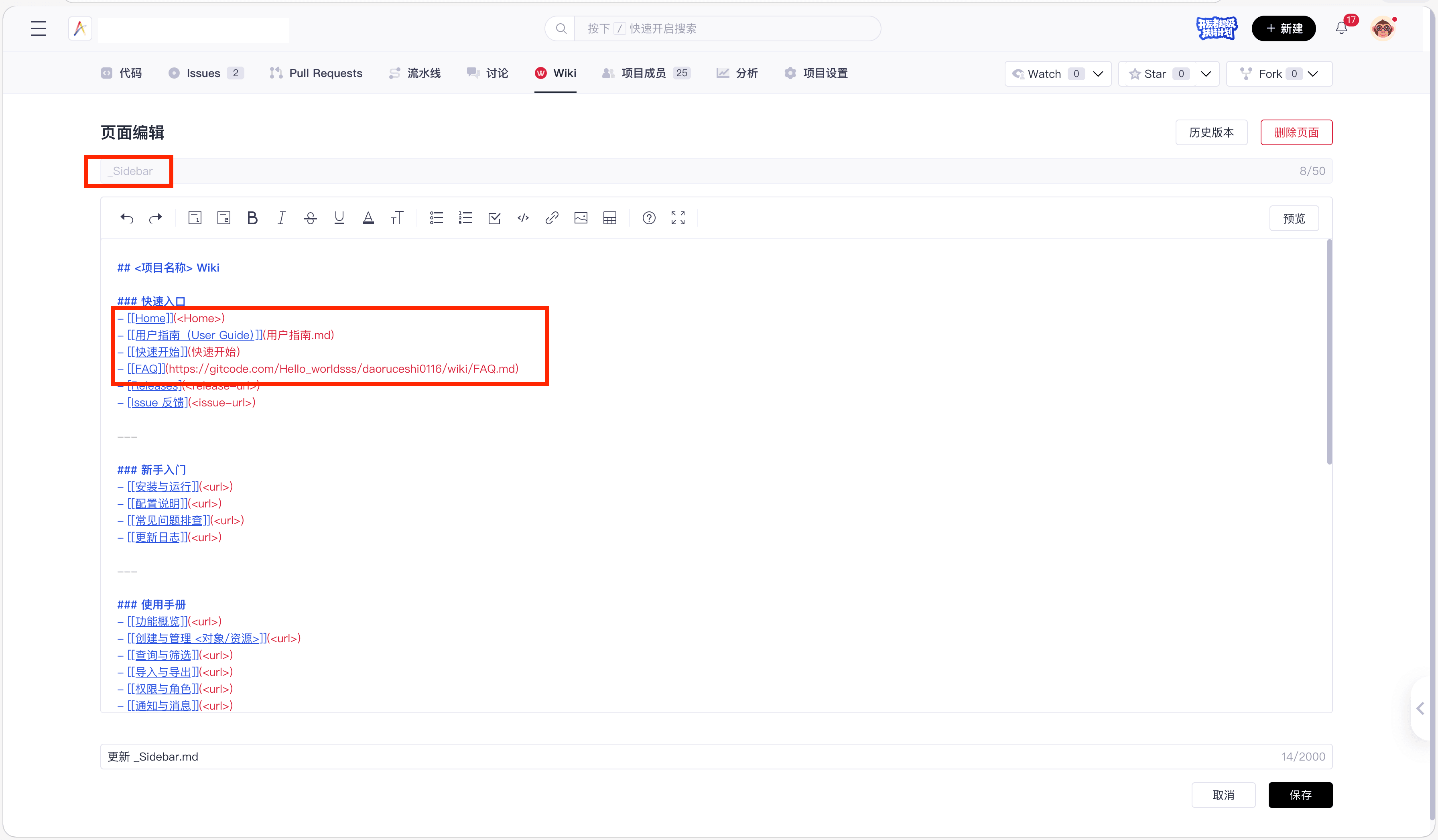
_Sidebar.md is the sidebar configuration file for Wiki, used to define the global navigation structure. Usually, this file organizes entries for each page (such as a directory tree or list), and uses hyperlinks to achieve quick jumps. The platform automatically parses and identifies existing pages in the Wiki, so when writing links, both full URLs and direct references using page names or file names are supported.
6. Configure the Footer
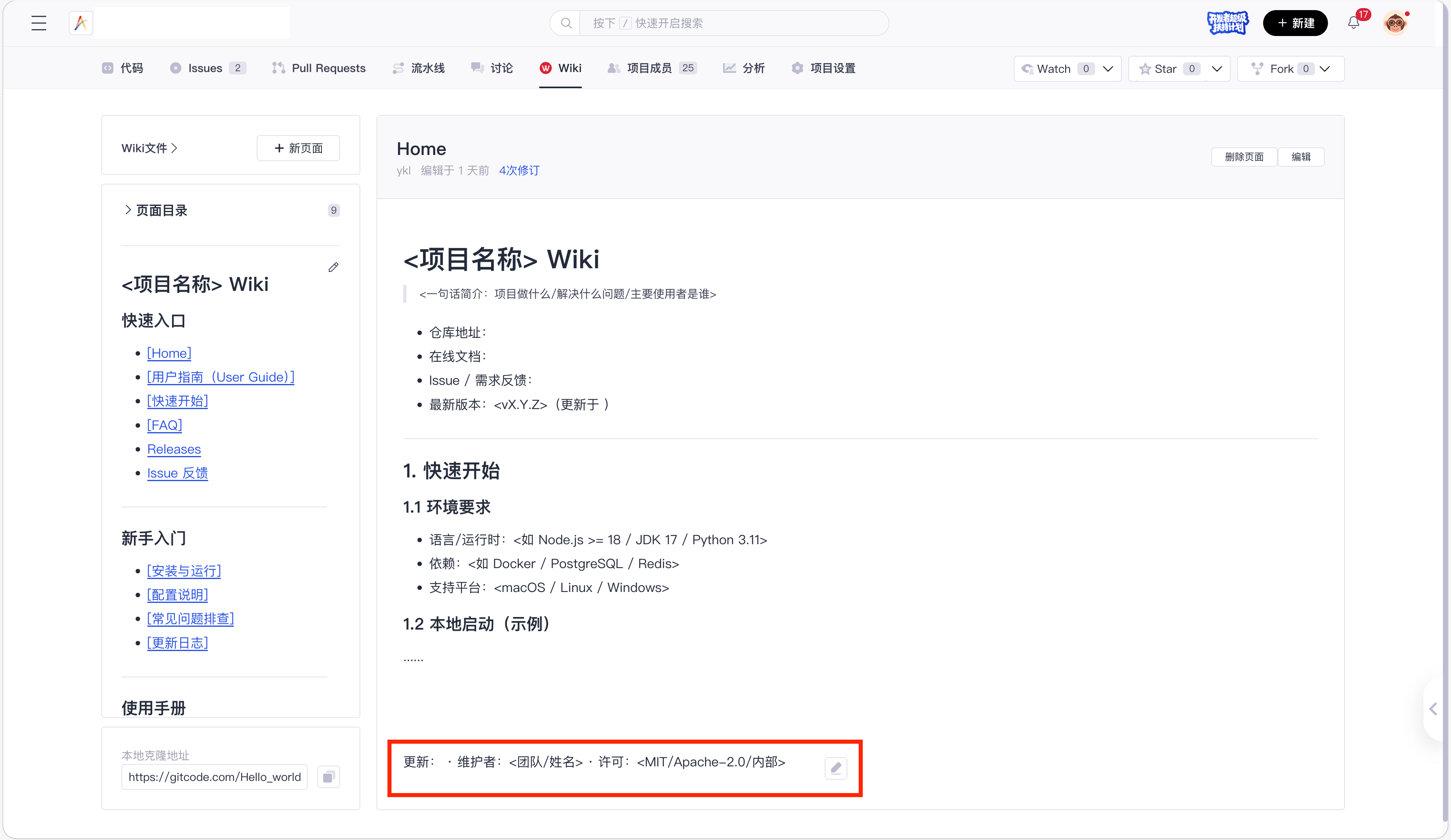
_Footer.md is the footer configuration file for Wiki, used to define content displayed at the bottom of all Wiki pages. It is usually used to place general information and quick access points, such as returning to the homepage, related document links, feedback channels, maintainer/update time, and copyright/license statements; after saving, it will be automatically applied to all Wiki pages.
Architecture Planning and Template Examples
1. Document Architecture Planning Reference
Option A: Hierarchical by Target Audience
Wiki Home Page (Hierarchized by Audience)
├── Quick Start (For All Members)
├── User Guide (For System Users)
├── Development Documents (For Developers)
├── Operations Manual (For System Administrators)
└── Contribution Guidelines (For Developers and Administrators)
Option B: Hierarchical by Project Life Cycle
Wiki Home Page (Hierarchized by Life Cycle)
├── Quick Start
├── Development Phase
├── Release Phase
├── Operations Support
└── Frequently Asked Questions (FAQ)
2. Standard Page Template Reference
# User Guide (User Guide) - <Project Name>

> Target Audience: <General Users/Administrator/Operators, etc.>
> Applicable Version: <vX.Y> (Document Updated on <YYYY-MM-DD>)
> System Access Point: <URL or Client Access Information>

## Quick Navigation
1. Newcomer Guide: Please refer to [[Quick Start]](<url>)
2. System Capabilities: Please refer to [[Overview of Features]](<url>)
3. Core Operations:
   - [[Core Task: Create and Manage]](<url>)
   - [[Core Task: Query and Export]](<url>)
4. Technical Support:
   - [[Troubleshooting Guide]](<url>)
   - [[Frequently Asked Questions (FAQ)]](<url>)

## Pre-requisites for Use
- Account Activation: <Description of Acquisition Method>
- Permission Request: Details see [[Permission and Role Description]](<url>)
- Environment Requirements: <Description of Applicable Browser/Web Environment/Client Version>

## Knowledge Base Index
- Features and Tasks: [[Overview of Features]](<url>), [[Core Task: Create and Manage]](<url>), [[Core Task: Query and Export]](<url>)
- Rules and Explanations: [[Field and Rule Description]](<url>)
- Permission System: [[Permission and Role Description]](<url>)
- Support and Help: [[Troubleshooting Guide]](<url>), [[Frequently Asked Questions (FAQ)]](<url>), [[Glossary]](<url>)
File Format and Parsing Rules
GitCode Wiki only renders specific format files and includes them in the sidebar navigation directory. The current supported file formats include:
- Markdown: .md, .markdown, .mdown, .mkdn
- reStructuredText: .rst, .rest
- Org-mode: .org
Notes:
- Files that are not supported for parsing in the Wiki code repository (such as images, code scripts, etc.) will still be stored normally in the Wiki code repository. These files will not be rendered as Wiki pages and will not appear in the navigation directory. When performing a Clone operation on the Wiki repository, these files will be fully downloaded.
- The navigation structure of the Wiki page is composed of the sidebar and hyperlinks between pages, not the folder hierarchy of the underlying repository. Even if subfolders are created in the local Wiki repository, all renderable pages will be included in the same navigation system in a flat manner, and the folder path will not appear in the sidebar structure. It is recommended to define the navigation hierarchy by editing the _Sidebar page and use internal links within the page to associate relevant content.