Issue Template
GitCode provides an Issue template feature, which helps project maintainers quickly understand and resolve issues by configuring different content templates. It also enhances the interactive experience for users when they propose suggestions or report issues. This article will detail how to create and configure Issue templates.
What is an Issue Template?
An Issue template is a predefined structured format used to standardize the information provided by users when creating an Issue. Through the template, users can more clearly describe the problem or requirement, while project maintainers can efficiently obtain key information, thus accelerating the problem-solving process.
Template Configuration Location
You can place the Issue template in the .gitcode/ folder of the project (create it if it does not exist), or place it in docs/ or .gitcode/ISSUE_TEMPLATE/, and create the ISSUE_TEMPLATE.md file within it. You can create multiple template files in the .gitcode/ISSUE_TEMPLATE/ folder, and GitCode will display the created templates when creating an Issue in this project for use.
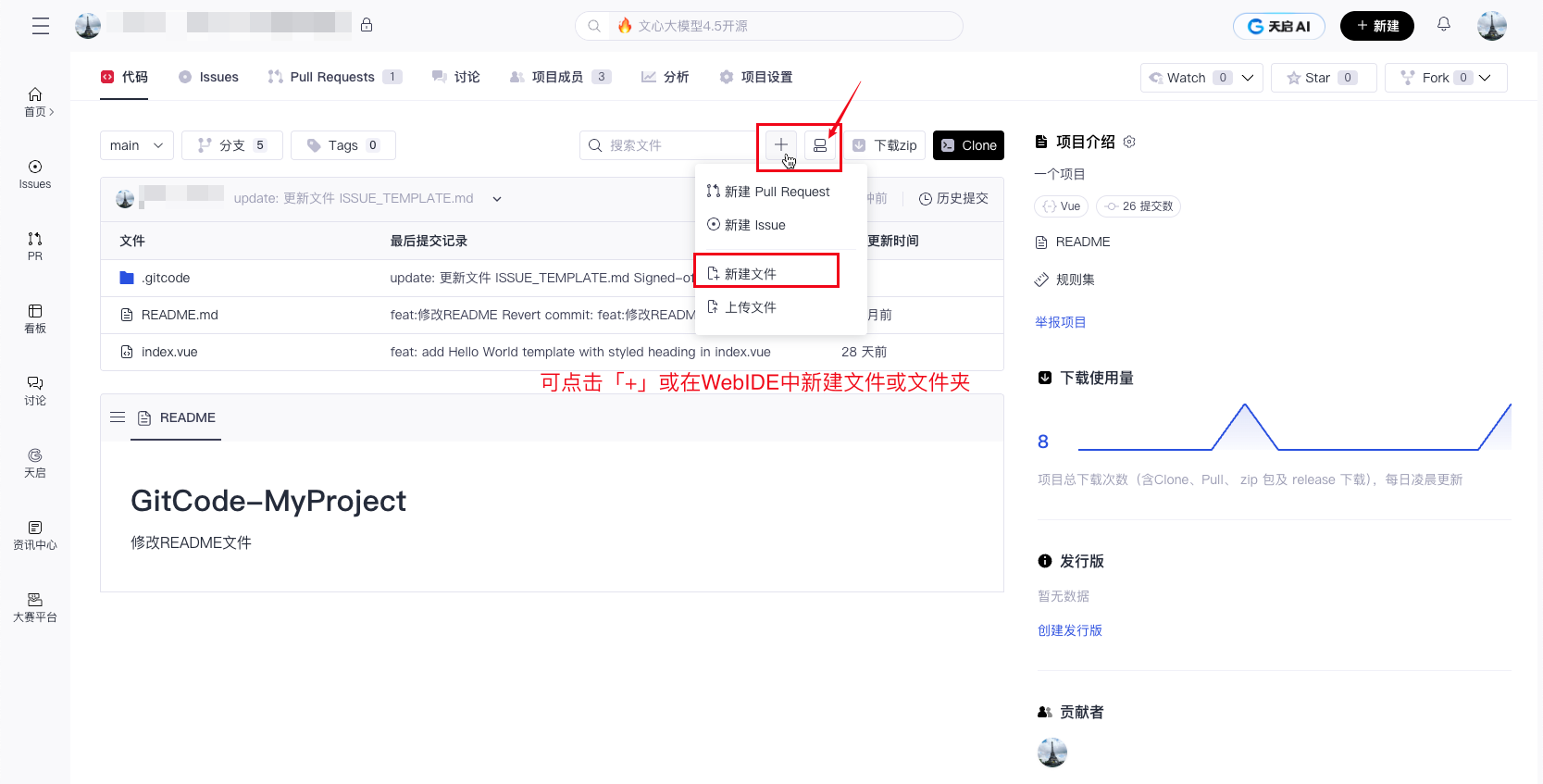
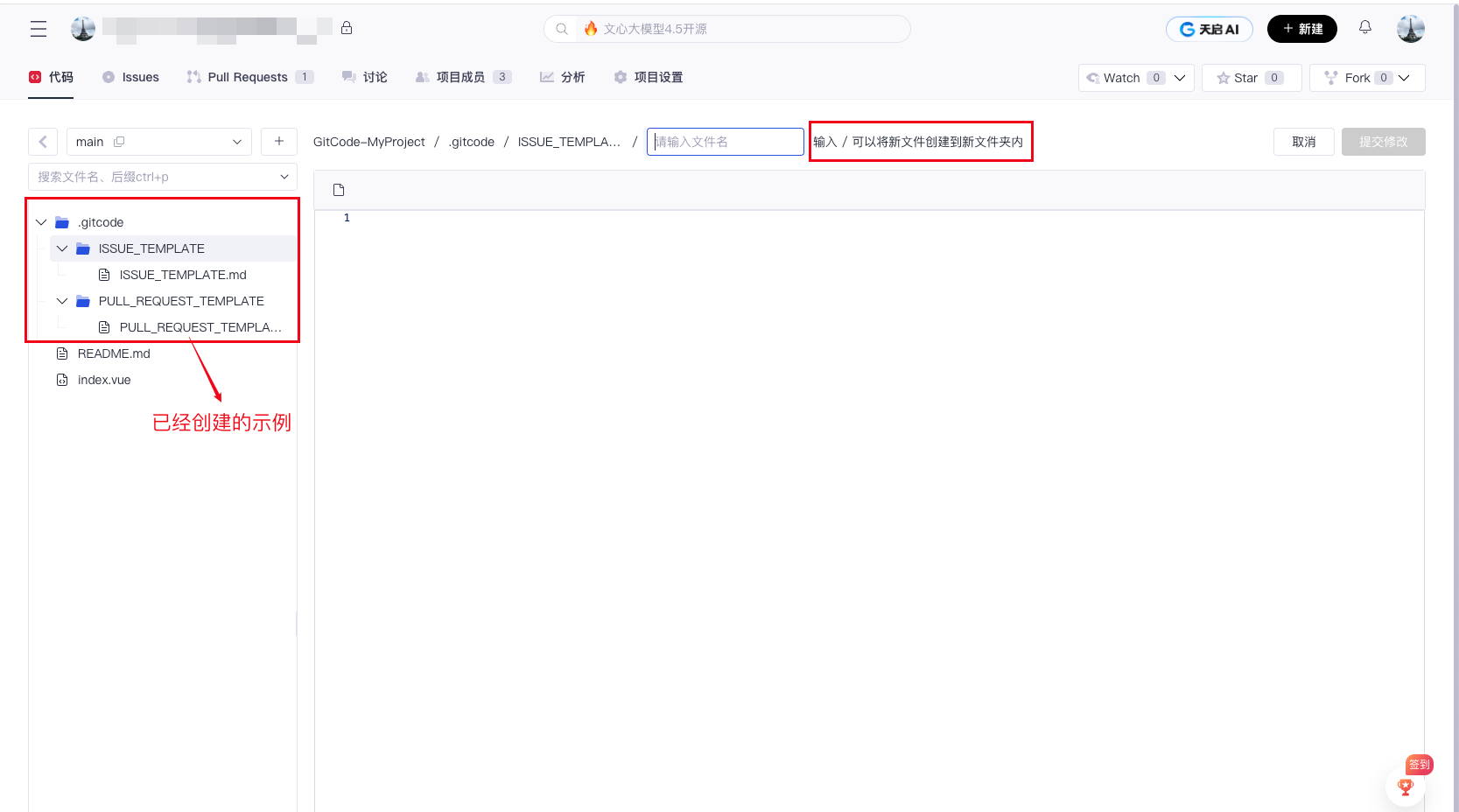
The template configuration must be placed in the default branch of the repository. If you create the template in another branch, the configuration will not take effect, and the related features cannot be used by collaborative users.
Here is an example of a repository file tree that uses GitCode Issue templates, showing the configuration location and file structure of the Issue templates:
➜ git:(main) tree -L 2 .
.
├── .gitcode  # Compatible with .github directory (prefer .gitcode directory)
│   ├── ISSUE_TEMPLATE    # Issue template configuration directory
│   │   ├── feature.yml   # Issue form template for feature suggestions
│   │   ├── bug.yml       # Issue form template for bug reports
│   │   ├── question.md   # Markdown template for questions
│   │   └── config.yml    # Template selector configuration file
│   └── issue_template.md # Blank Issue template (optional)
├── LICENSE
├── README.md
└── src
    ├── index.js
    └── utils.js

5 directories, 8 files
How to Create an Issue Template
Currently, GitCode Issue templates support the following two types of input:
- Markdown: Traditional Issue templates composed of several
.mdfiles. They usually provide normative guidance for the title and body of an Issue, with relatively weak restrictions on users. - Form YAML: You can create Issue templates with customizable web form fields. You can use issue forms in your repository to encourage contributors to include specific structured information. Issue templates are written in YAML. For more details, see “YAML Form Syntax”. If you are unfamiliar with YAML and want more details, see “Learn YAML in Five Minutes”.
Markdown Template Configuration
In .md files, you can define basic properties of the template by configuring front-matter information, such as the template name, title, default assignee, labels, etc. The main content will be used as the preset description when users create an Issue.
Here is a simple example of a Markdown template:
---
name: Bug Report (Markdown template)
about: Report an issue to help us improve
title: [BUG]
labels: ["fix","bug"]
assignees: "f1325"
---

### Bug Type
<!-- Please describe the type of bug, such as UI, functionality, experience, etc. -->

### Steps to Reproduce
<!-- Please describe in detail the steps to reproduce the bug -->
If you need to use a separator within the template, do not use three "-" symbols "----", to avoid conflicts with the separator symbols in the template rules. It is recommended to use four "-" symbols "----".

This template automatically generates a title starting with "[BUG]" when a user creates an Issue, and adds the "bug" label and a specified assignee. At the same time, the template provides two structured fields: "Bug Type" and "Steps to Reproduce", guiding users to clearly describe the issue.
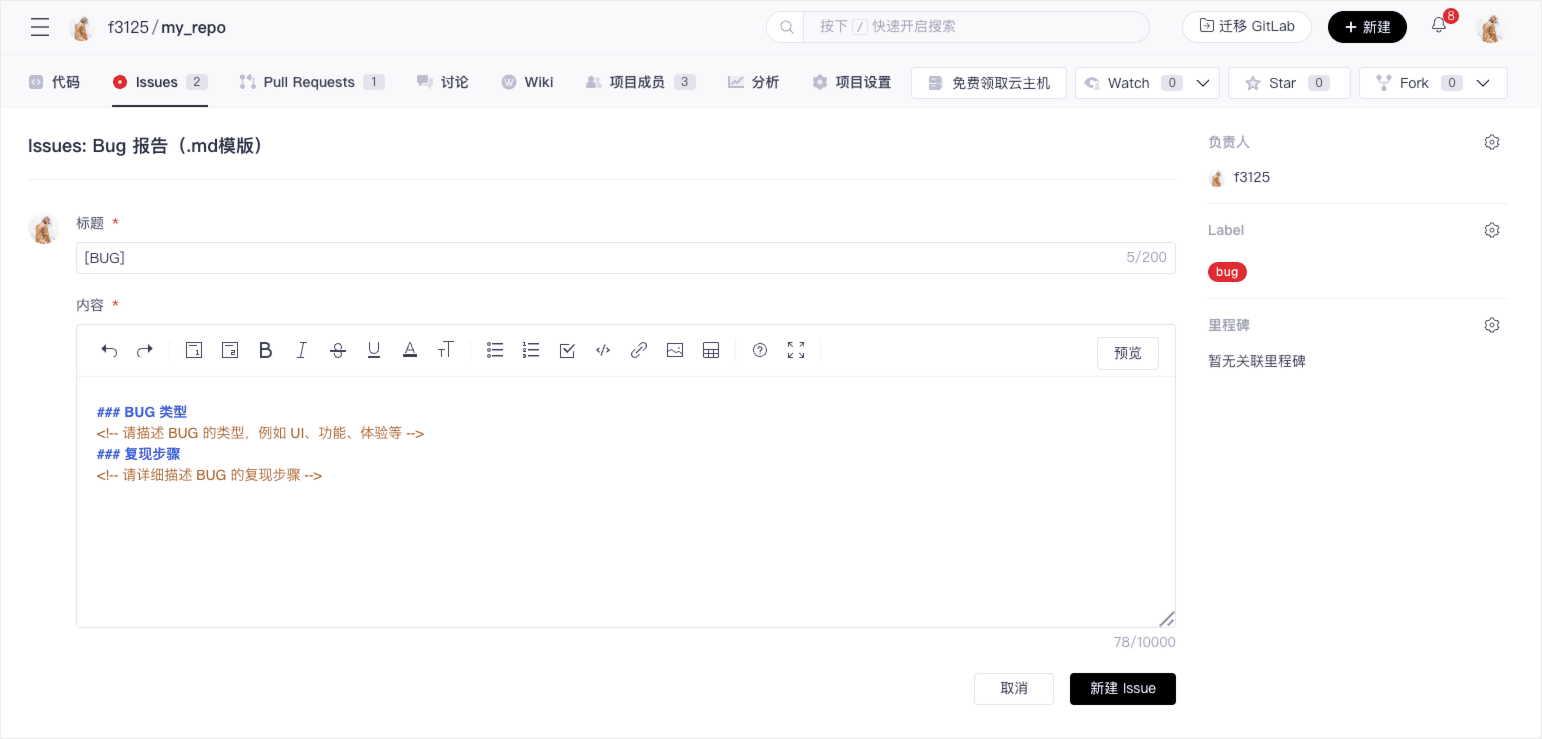
Currently, GitCode supports the following markdown front-matter configurations:
| Field | Description | Notes |
|---|---|---|
name | Template name | Use double quotes if it contains Chinese |
about | Template explanation | Use double quotes if it contains Chinese |
title | Default title for the Issue | Use double quotes if it contains Chinese |
labels | Labels for the Issue, supports multiple | Add multiple labels inside brackets, if the label does not exist, it will not be displayed when creating an Issue |
assignees | Default assignee for the Issue | Username of the assignee |
Form YAML Template Configuration
YAML format templates support more complex configurations, including pre-assigned people, labels, and custom form types (such as input fields, dropdown menus, radio buttons, checkboxes, code blocks, etc.).
Here is an example of a YAML template:
name: Bug Report (YAML template)
description: Report an issue to help us improve
title: "[BUG] "
labels: ["bug"]
assignees: "yours_username"

body:
  - type: markdown
    attributes:
      value: |
        ## Thank you for your report!
        Please check if this issue has already been reported before submitting.

  - type: input
    id: what-happened
    attributes:
      label: What happened?
      description: Please describe the issue in as much detail as possible.
      placeholder: Please enter detailed information here
    validations:
      required: true

  - type: checkboxes
    id: terms
    attributes:
      label: Confirmation
      description: Please confirm the following information.
      options:
        - label: I have searched existing Issues and confirmed this is a new issue.
          required: true
        - label: I have read the relevant documentation.
          required: false

  - type: dropdown
    id: version
    attributes:
      label: Affected Version
      description: Please select the affected software version.
      options:
        - 1.0
        - 2.0
        - 3.0
        - I'm not sure
    validations:
      required: true
The example form effect is as follows:

The specific field explanations are as follows:
| Field | Description | Notes |
|---|---|---|
name | Template name, required | Used to define the name of the template |
description | Template explanation, required | Used to explain the purpose of the template |
title | Default title for the Issue, optional | Use double quotes if it contains Chinese |
labels | Labels for the Issue, supports multiple, optional | Multiple labels need to be enclosed in brackets, if the label does not exist, it will not be displayed when creating an Issue |
assignees | Default assignee for the Issue, optional | Username of the assignee, if the user does not exist, it will be ignored |
body | Form configuration content, required | Supports various form types, see YAML Form Syntax for specific configurations |
Configuring the Template Selector (config.yml)
By adding a config.yml file in the .gitcode/ISSUE_TEMPLATE directory, you can customize the template selector that users see when creating an Issue.
Here is an example:
blank_issues_enabled: false  # Disable the option to create blank Issues
contact_links:
  - name: GitCode Help Center
    url: https://docs.gitcode.com/
    about: We are here to help you anytime, answering all your questions about using GitCode
Field explanations in config.yml are as follows:
blank_issues_enabled: false: Disables the option for users to create blank Issues without using a template. If you allow users to create blank Issues, change the value totrue.contact_links: Provides external resource links that users can access before creating an Issue to get help or information.name: Link name, displayed on the Issue creation page.url: Link address.about: Short description of the link.
Example effect:

Whether it's a simple Markdown template or a complex YAML form template, they can help you better manage Issues in your project. We hope this article provides you with clear configuration guidance to help your project run efficiently.